GuideTone
Loop the hard parts, slow them down without changing pitch, put the whole chart in your key, pull the band apart, read the chords and the lyrics, write your own music down — and train until it's yours. All on your own device, all offline.
Meet the Player ↓Section 01
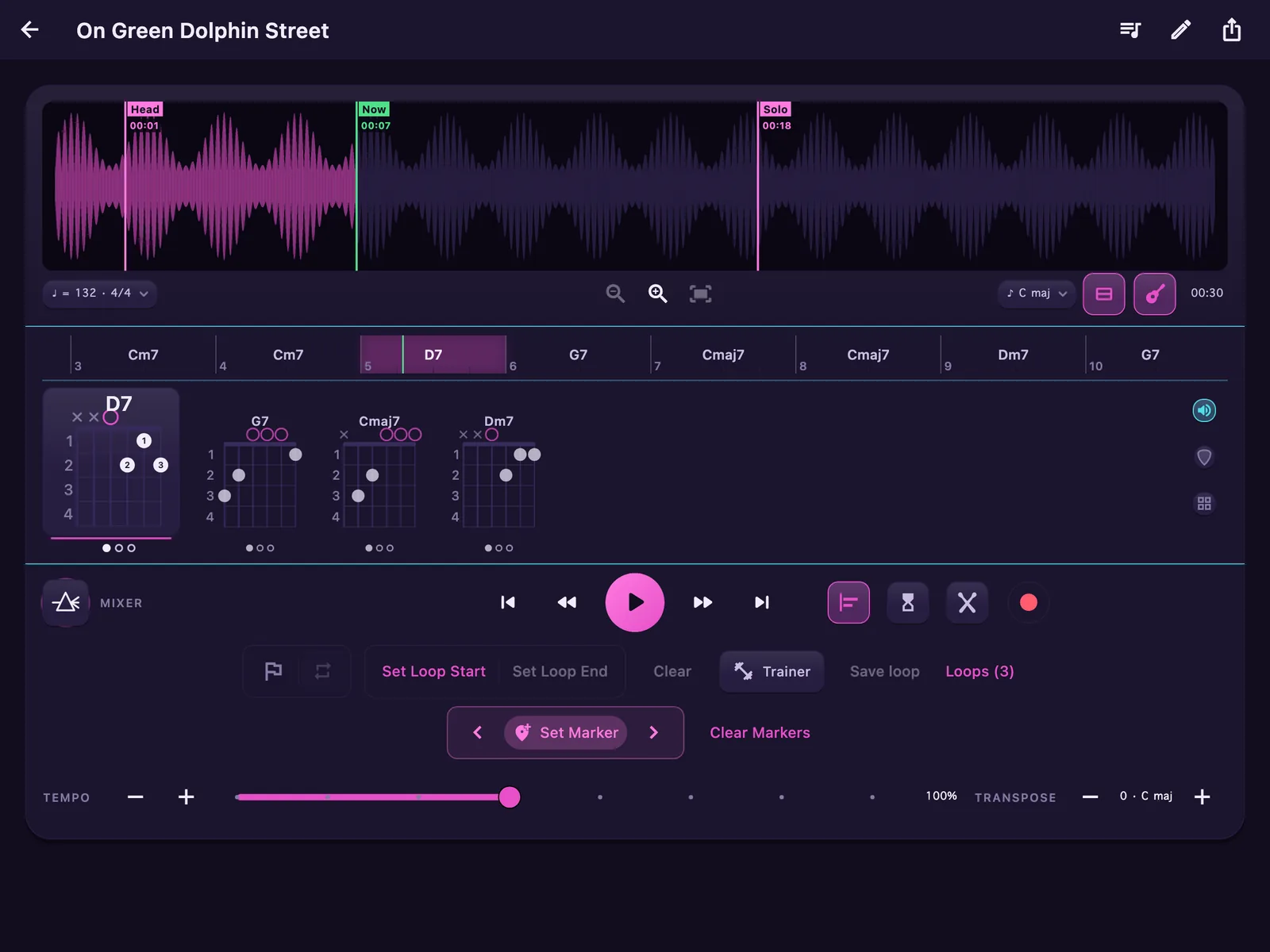
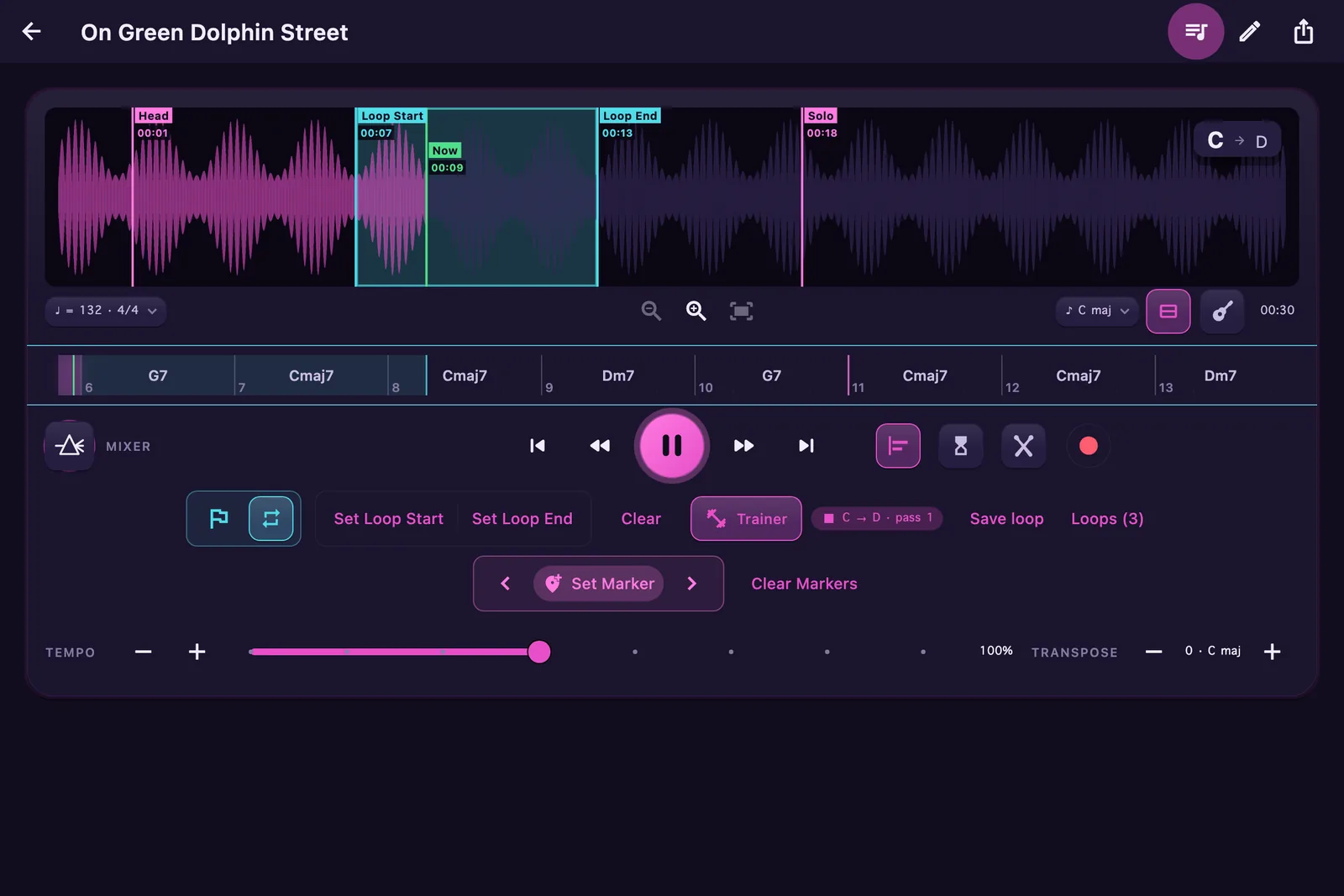
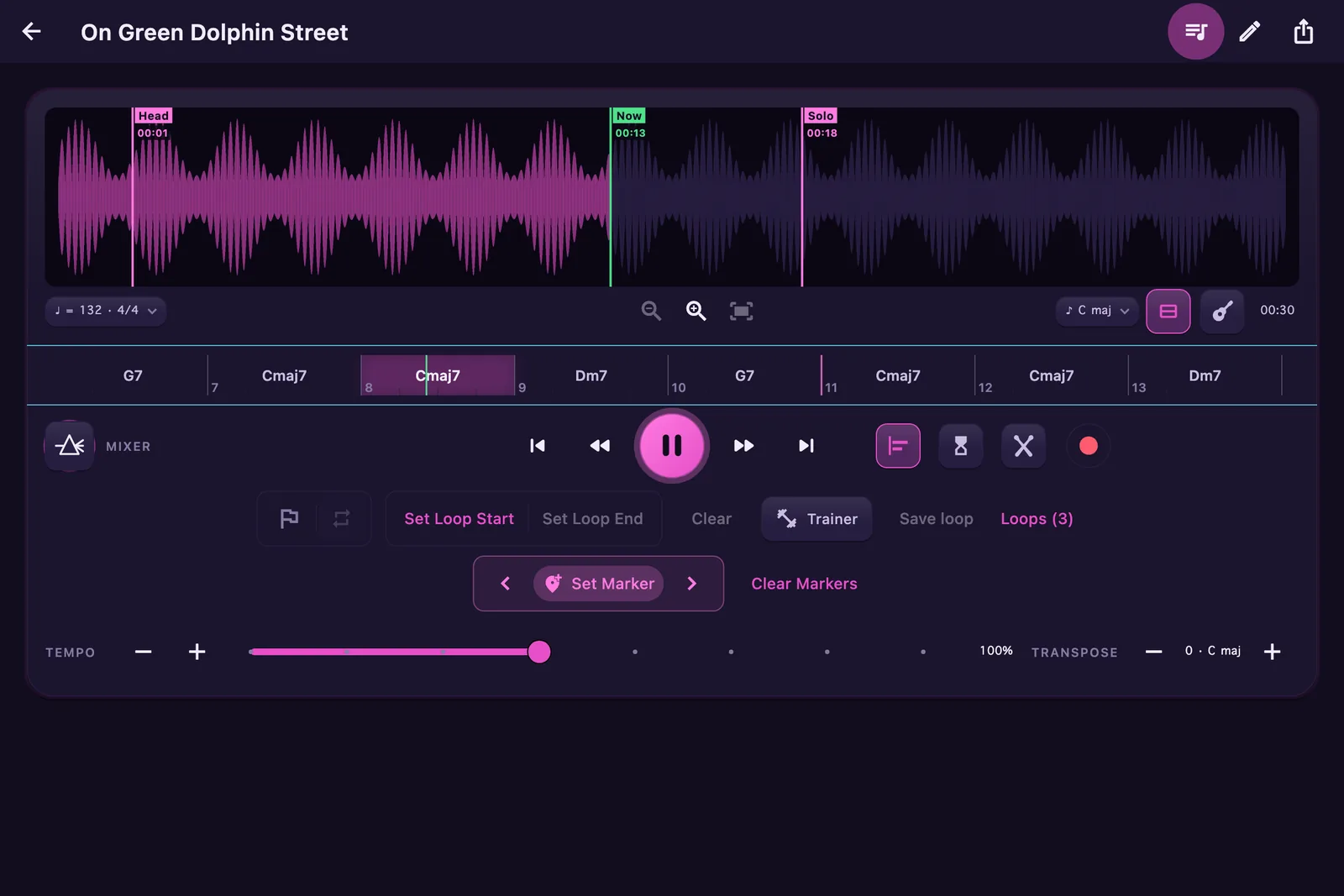
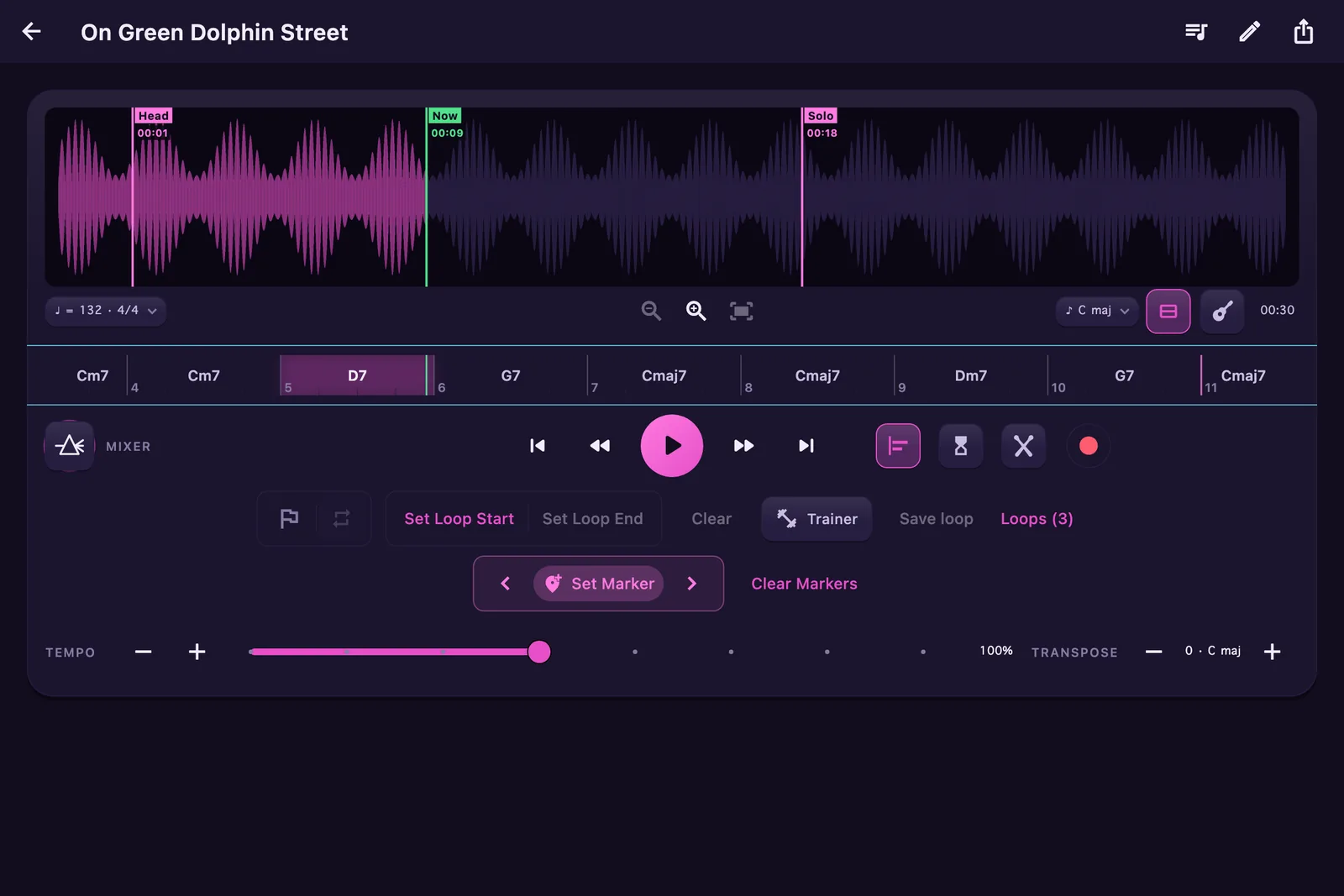
One screen with everything a working musician reaches for: the waveform, the changes, the loop, the trainer, the band, the record button. Shown here in GuideTone's After Hours theme — the neon set: electric magenta and cyan sign-glow on a violet-black club wall.
01 · Waveform
Import music you own — Files, iCloud Drive, AirDrop — and GuideTone draws it as a clean, musical waveform. Double-tap to jump, pinch to zoom, and drop named markers on the map: Head, Solo, wherever the form turns.
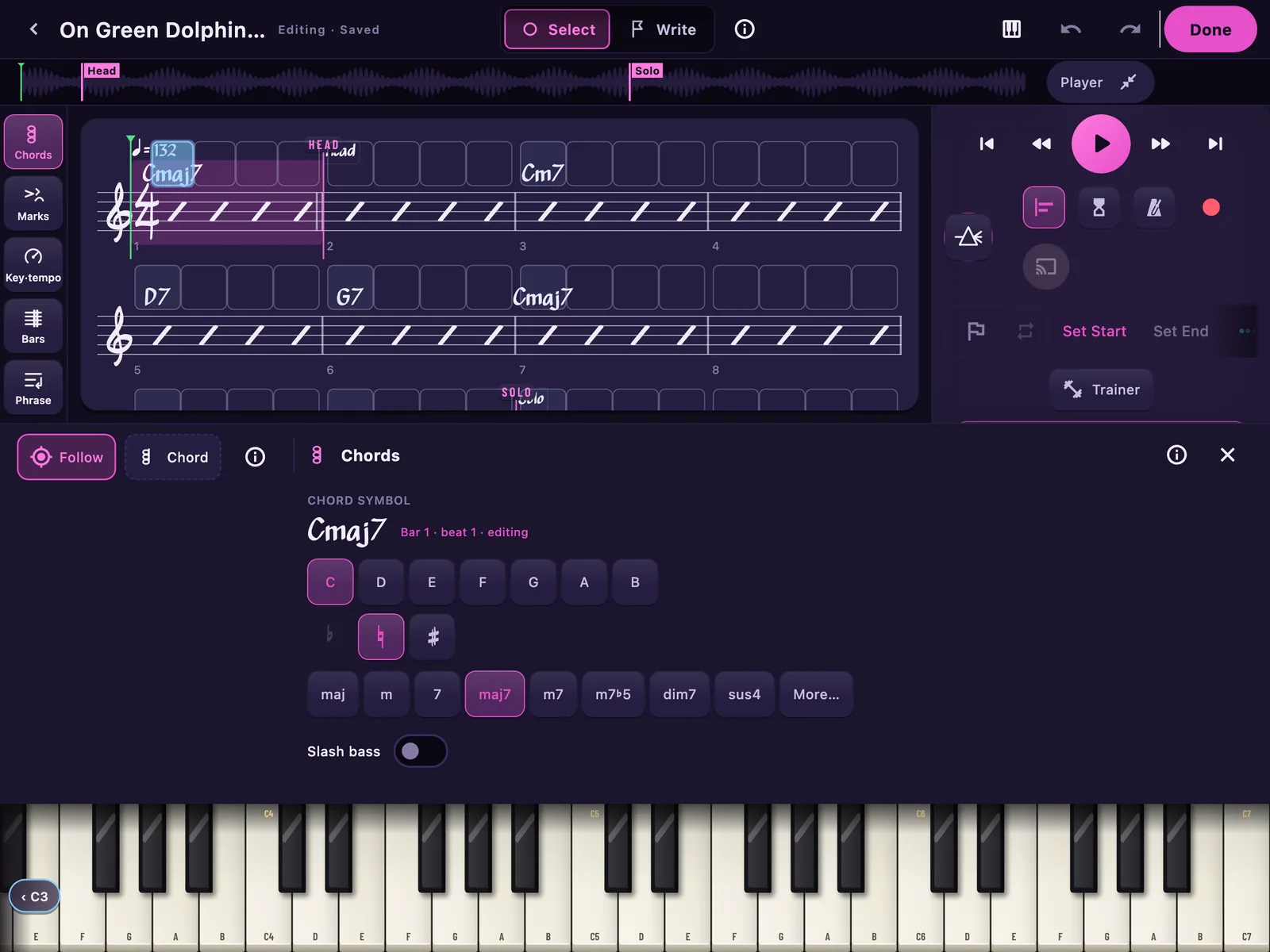
Beat detection reads the song's own pulse (♩ = 132 here, and it knows it's in 4/4), so everything downstream — the bar grid, the count-in, the snap — lines up with the music.
Live — this one's playing
The changes slide under the playhead, and every beat ticks as it lands — this is Reader mode, rebuilt for the page. It follows the rain's tempo, so the slider below slows this too.
02 · Chord detection
GuideTone listens to the record and writes the chart: a bar-numbered chord lane that follows the music as it plays — Cm7 · D7 · G7, right where they sound. It names the key while it's at it.
Reader mode scrolls the changes past you like a bandstand chart; Snap mode locks them under the audio that sounds them. Every chord is editable — your ears outrank the model, always.
03 · Chord shapes
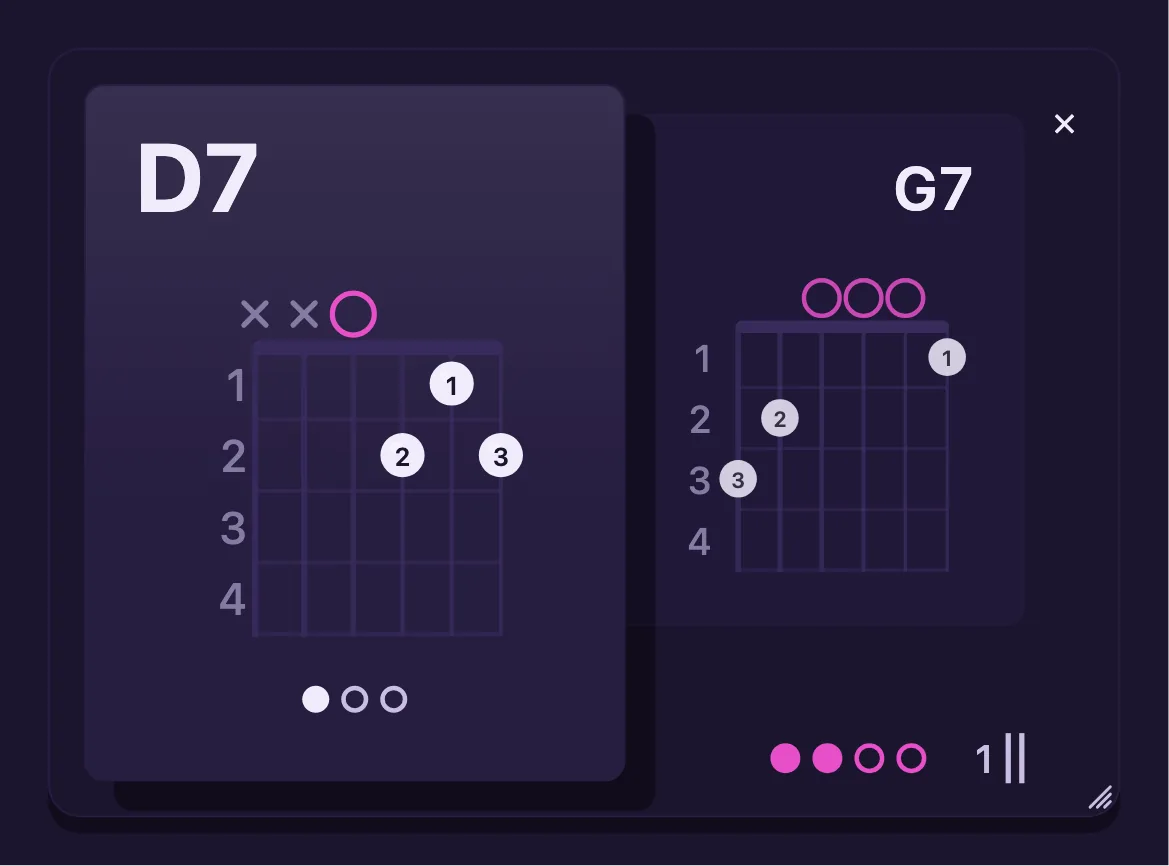
The changes are only half the answer. Under the chord lane, GuideTone draws the grip: the chord sounding right now, big and lit, with the dots where your fingers go — each one printing the job it does in the chord, root, third, fifth, the tension — and the next few reading ahead, so nothing lands by surprise.
Simplify trims a busy chart down to plain triads or sevenths when C♯m7♭5 is more chord than today needs. Clamp on the capo and only the shapes move — the song keeps its real names — while Suggest finds the fret where the whole tune turns into easy open chords.
Tap the big grip and you hear it, strummed. Send this chord and the next into a card you can drag anywhere and size to your music stand, with the beat ticking and the bars counting down underneath — or open the Chord Guide right on the chord you're looking at.
04 · Looping
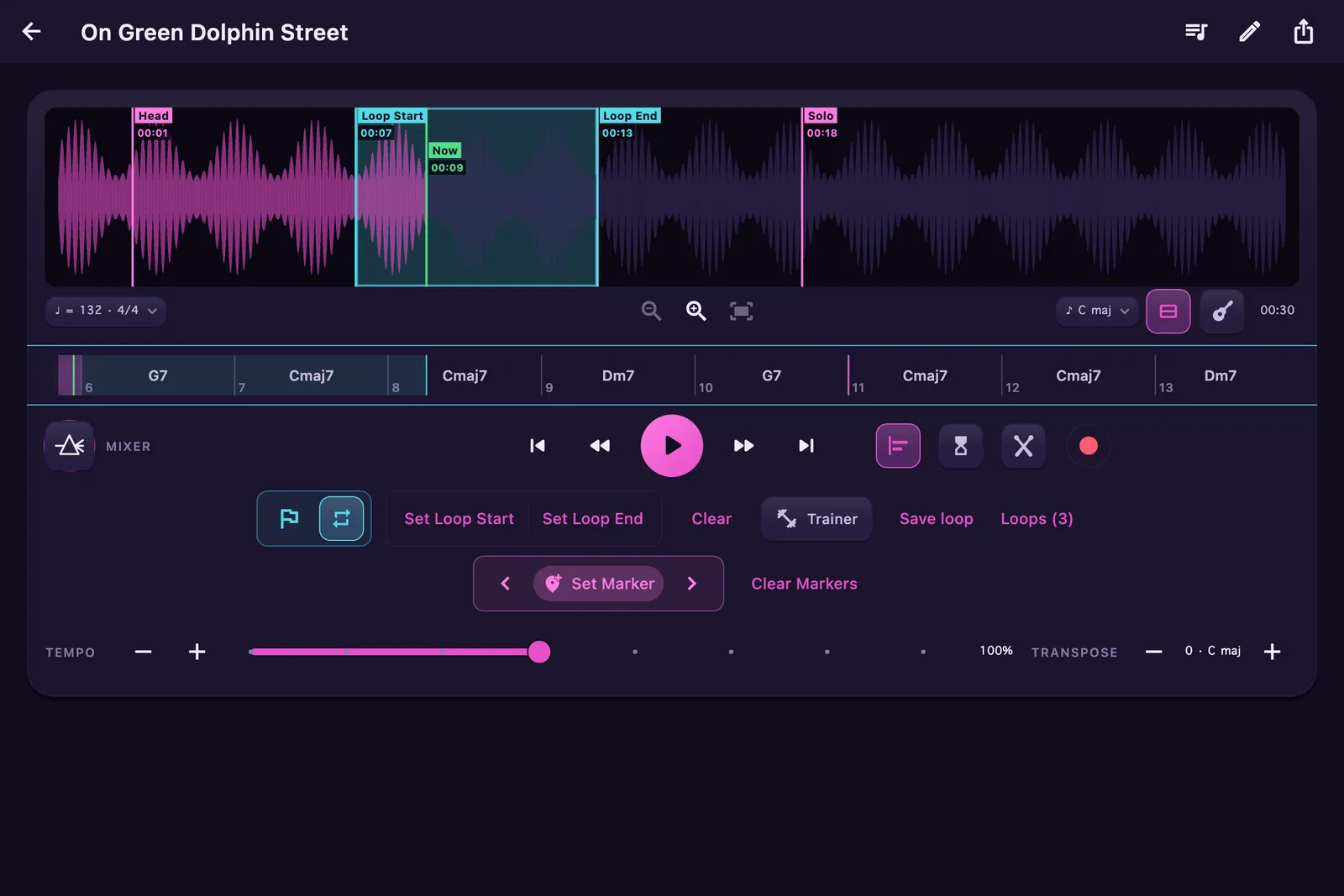
Set A and B without stopping the music and the passage spins seamlessly — the loop lives in the native audio engine, so the seam never hiccups. Nudge either end to the beat until the loop is exactly the phrase.
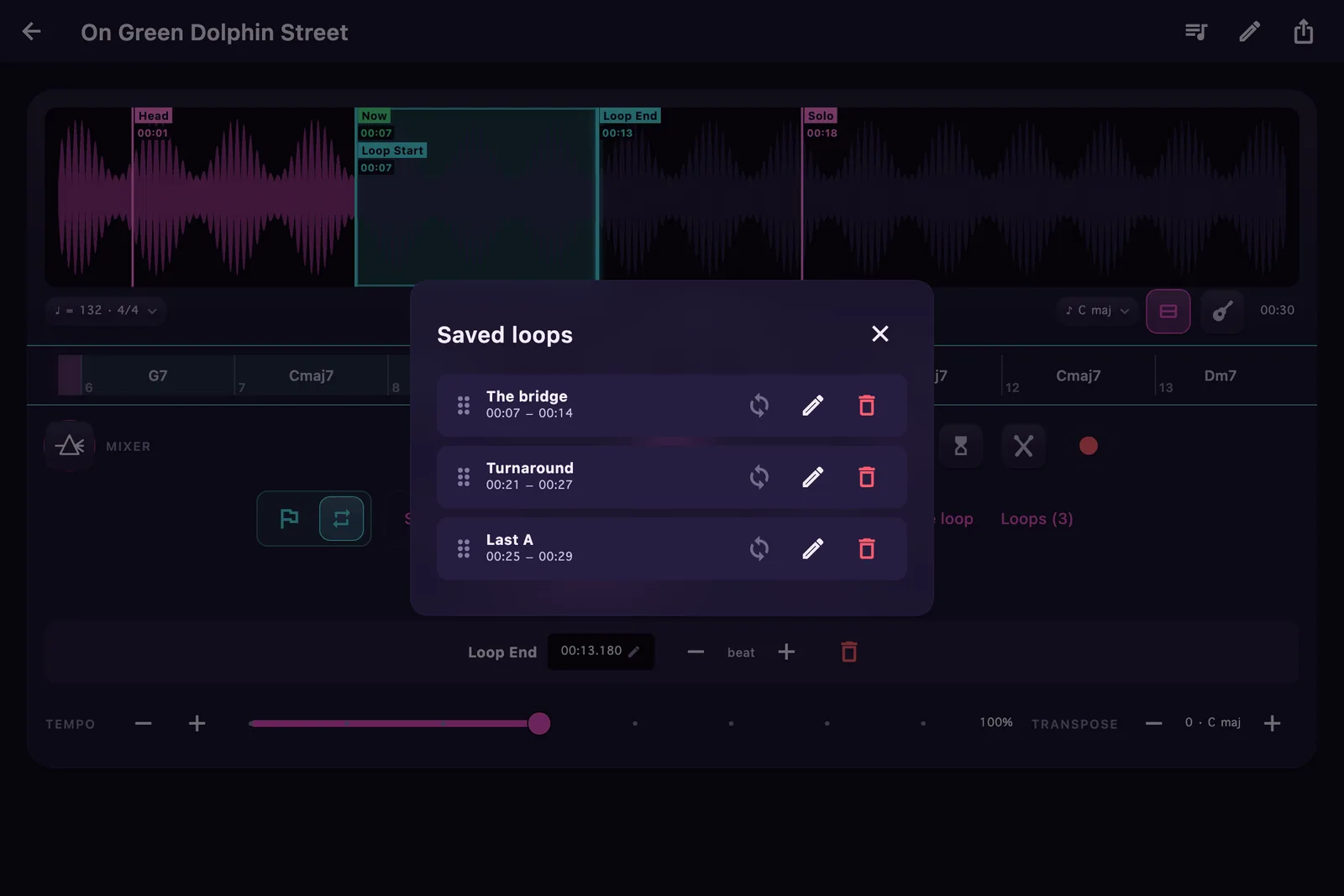
Then save it by name — “The bridge”, “Turnaround”, “Last A” — and tomorrow's practice starts where today's left off.
Try it on the rain Behind this card the storm is looping too — drag the A and B clamps on the staff to move the rain.
05 · Loop trainer
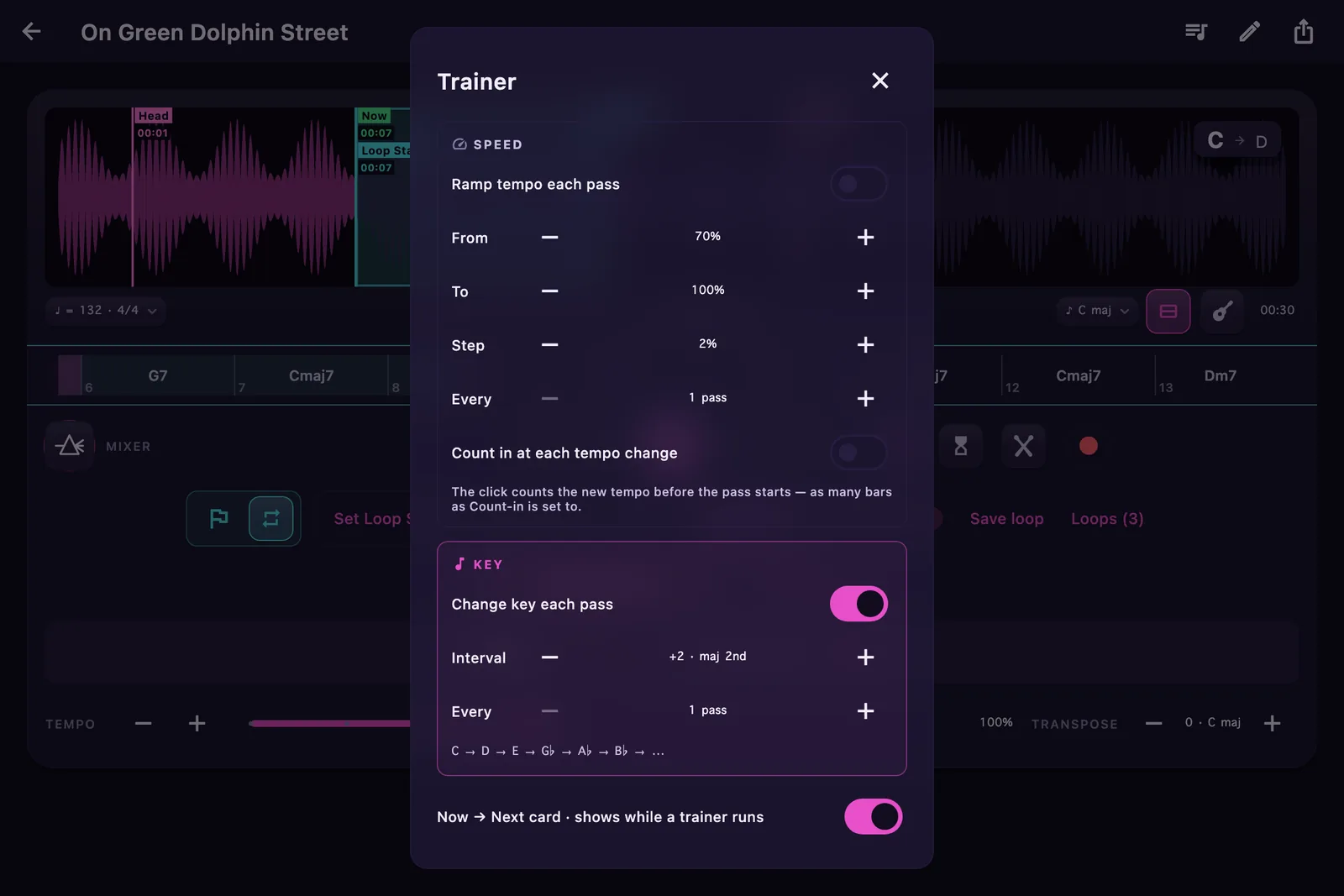
Arm the Speed trainer and every pass nudges the tempo — 70% to full, two points at a time, until you're playing it at speed without noticing the climb.
Arm the Key trainer and the loop walks the keys for you: up a whole step each pass, up in fourths, down in half steps — whatever interval you set, for as many passes as you want to sit in each key. Stop, and the song returns to where you started.
05 · The hub
Speed and Key live in one hub and run together if you dare — ramp the tempo while the key walks. The Now → Next card floats over the waveform so tomorrow's key never ambushes you.
06 · Tempo
25% to 200% with studio-grade time-stretching — no chipmunk, no smear, no drift, and magnetic detents at the useful stops. Slow the solo until you can hear every grace note, then walk it back up.
Try it on the rain
The drops fall later — but each one is still the same drop. Tempo 100% · Pitch +0 st, always.
07 · Transposition
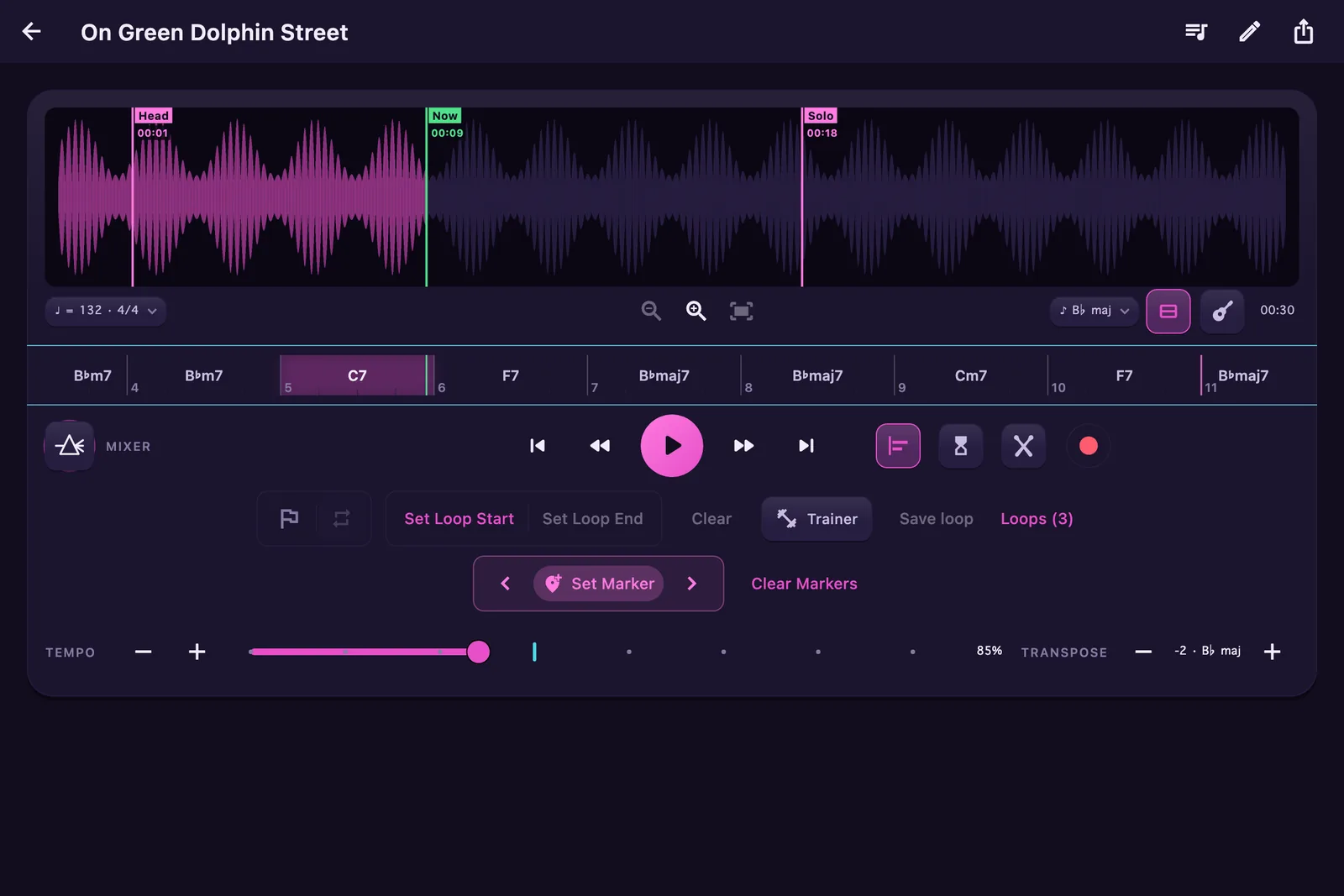
Six half-steps either way, artifact-free. Drop “Green Dolphin” a whole step and everything follows — the chord lane, the key badge, the trainer's key path — re-spelled into B♭ like the chart was written there.
Tenor and soprano players: that's concert pitch handled. Singers: find the key where the bridge stops hurting.
08 · Stem separation
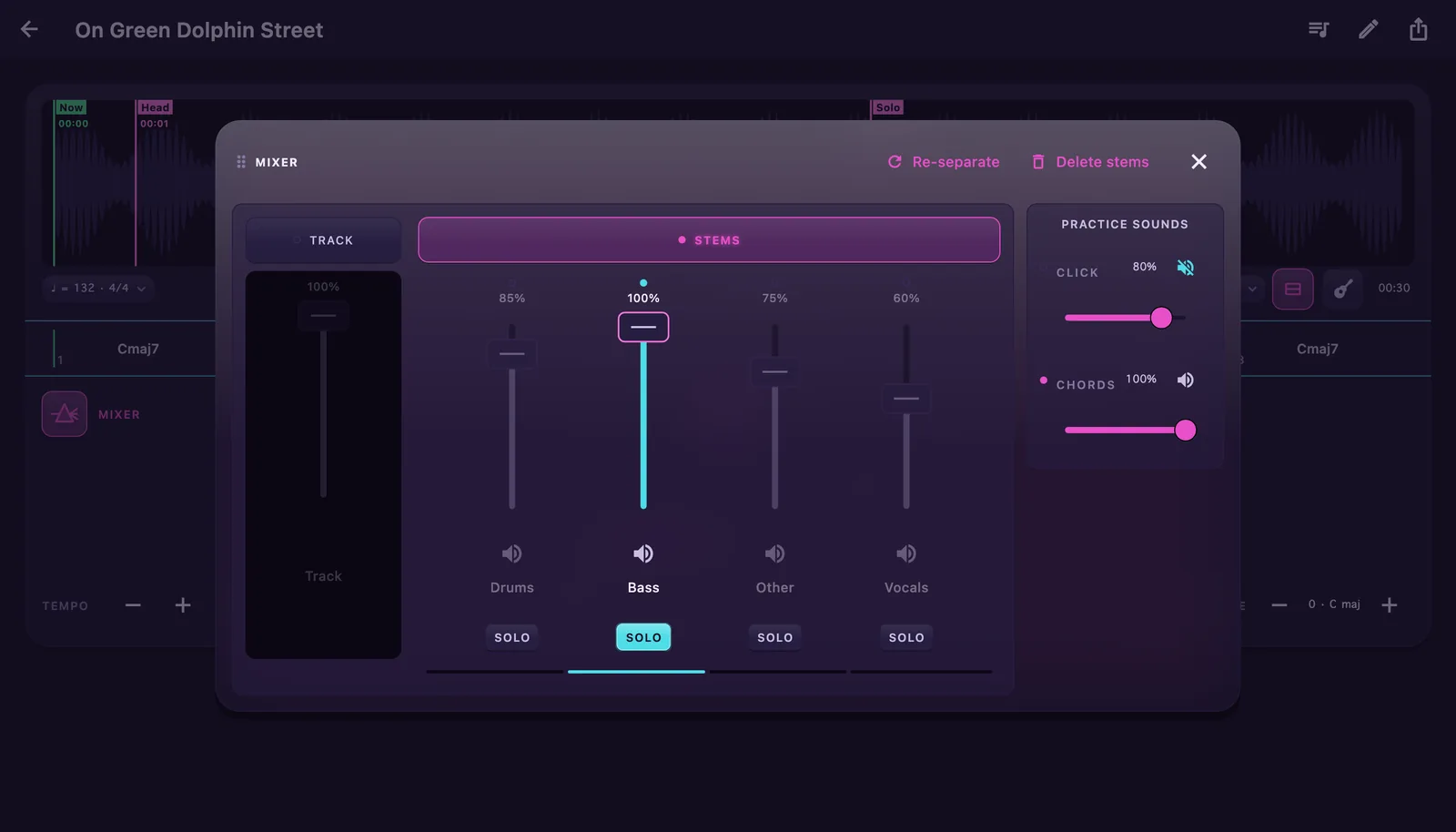
Two, four, or six stems — drums, bass, vocals, the rest — separated by a neural engine that runs entirely on your own device. Nothing uploads. Ever. The cloud never hears you practice.
Solo the bass to transcribe the line. Pull the drums and keep time yourself. Mute the sax and the chair is yours. Drop the vocal and it's karaoke — and with the words on screen, you have the whole song to sing.
Try it on the rain
Four rains are falling, one per stem. Silence a color and listen to what's left.
09 · Backing tracks
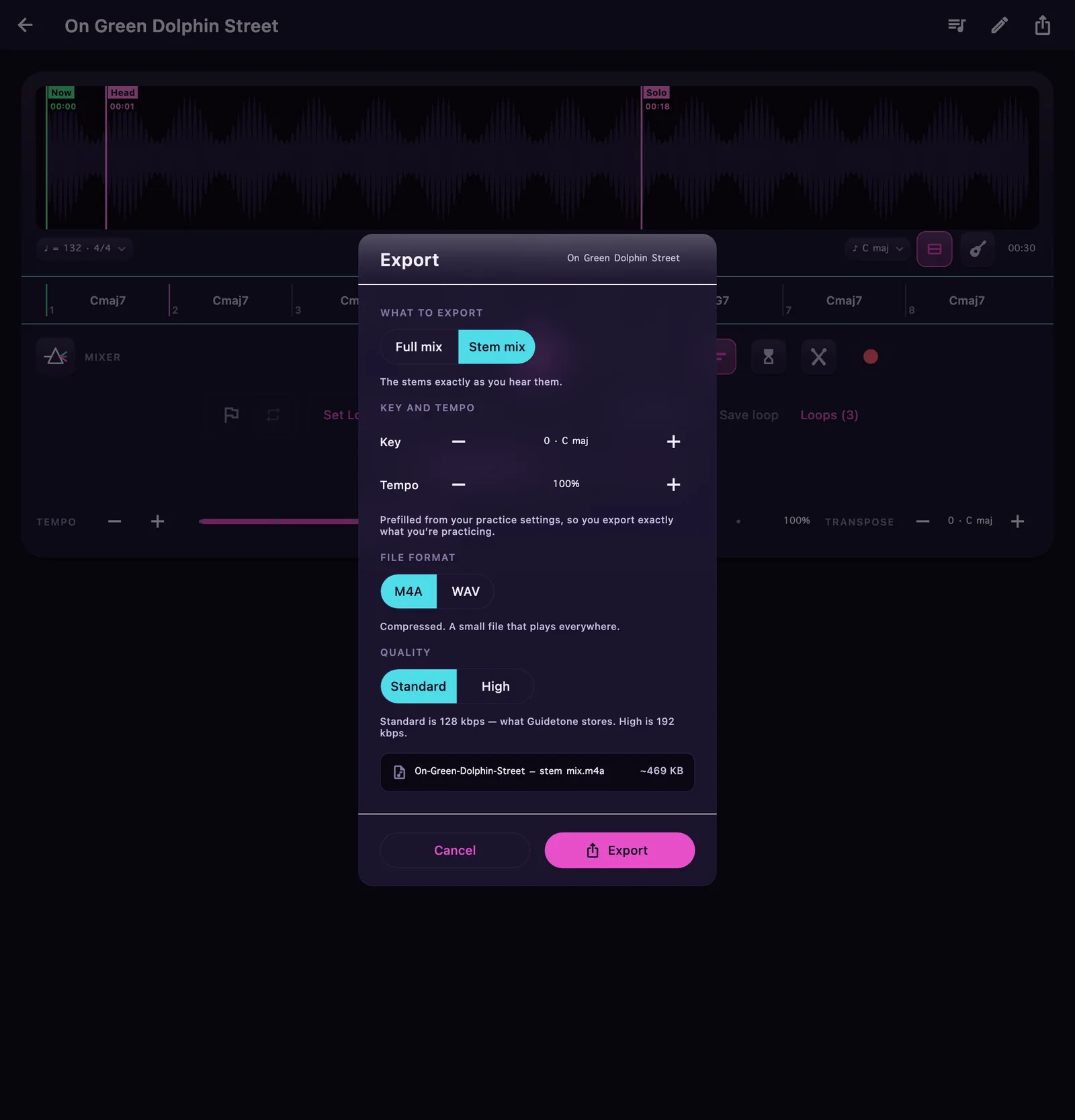
Slide the vocals — or any stem — to zero, balance what's left, and Export Stem Mix bounces a single file mixed exactly as you hear it. Faders, mutes, solo — what you heard is what you get.
Key and tempo come prefilled from what you've been practicing, so the file you hand out is the one you rehearsed. Save it as WAV when you want it uncompressed, or M4A at Standard or High.
An instant play-along for the gig, the classroom, or the practice room. Loop exports work the same way: just the phrase, as audio.
10 · Record
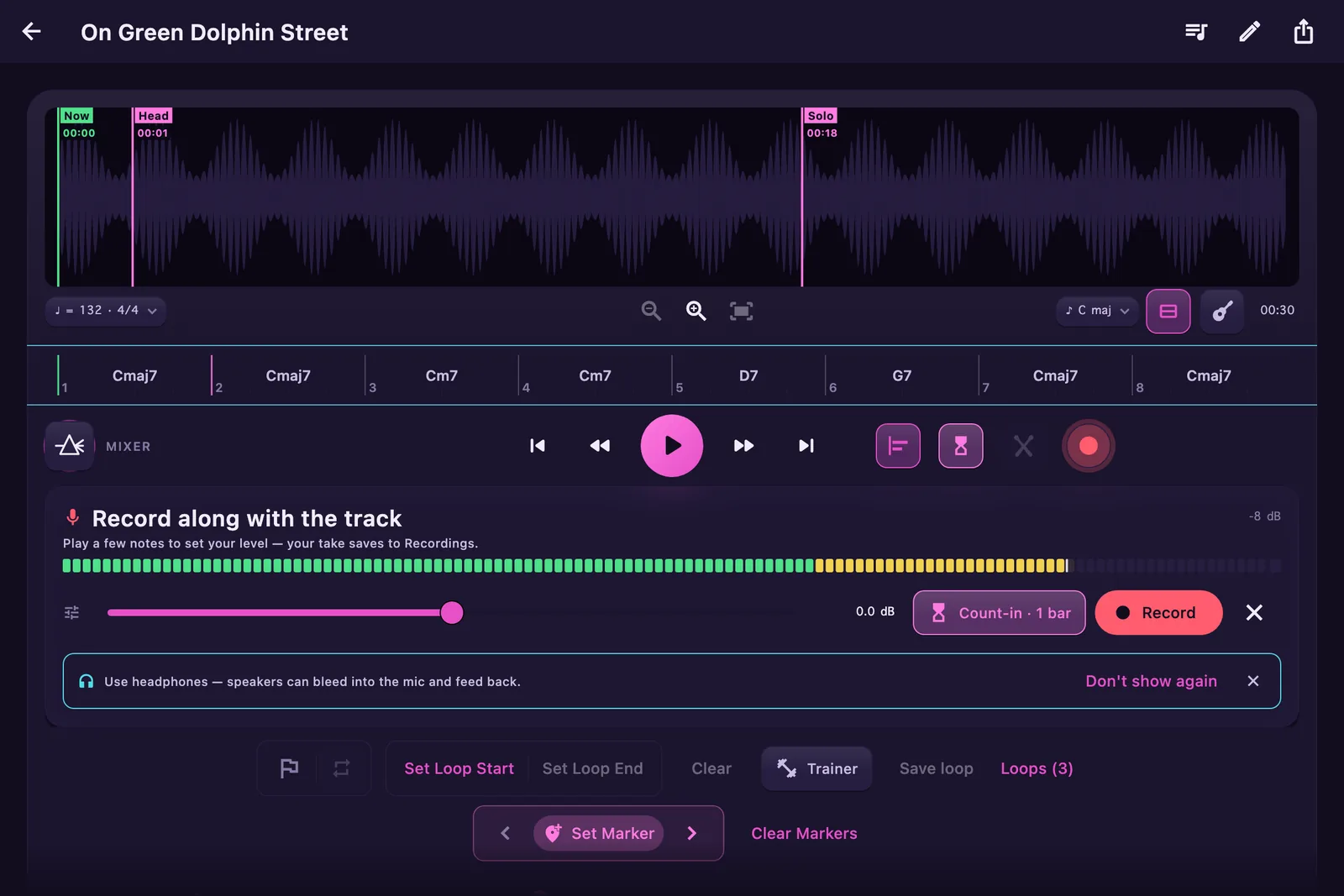
Tap ● and the arm tray springs open — no modal, the Player stays live. Set your level on a real meter (it reads exactly what lands on disk), dial in capture gain, and Start counts you in at the song's own tempo.
GuideTone records your instrument and the backing as separate layers, so in Review you balance the two before it saves one clean take — straight to your Recordings shelf.
Section 02
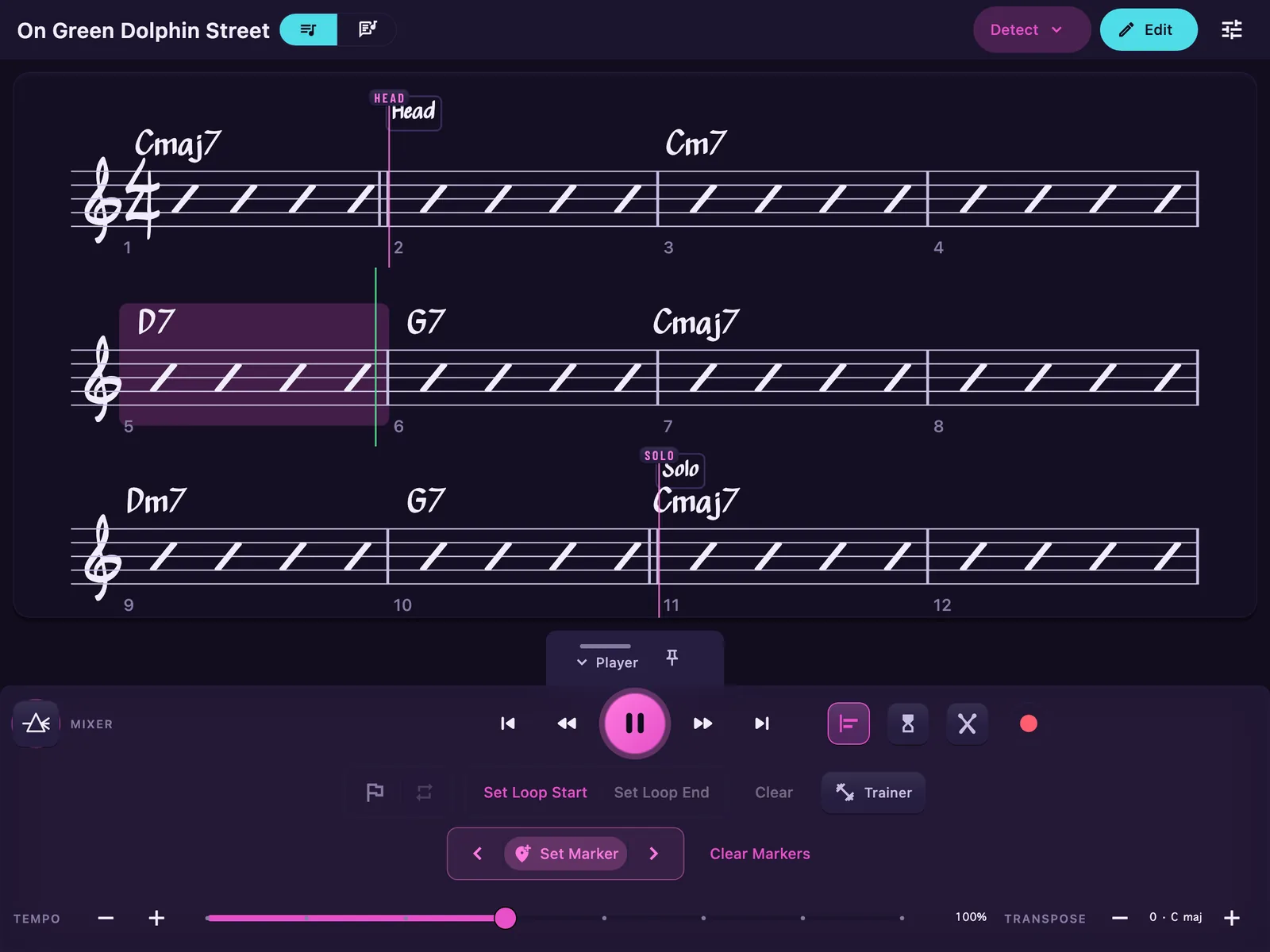
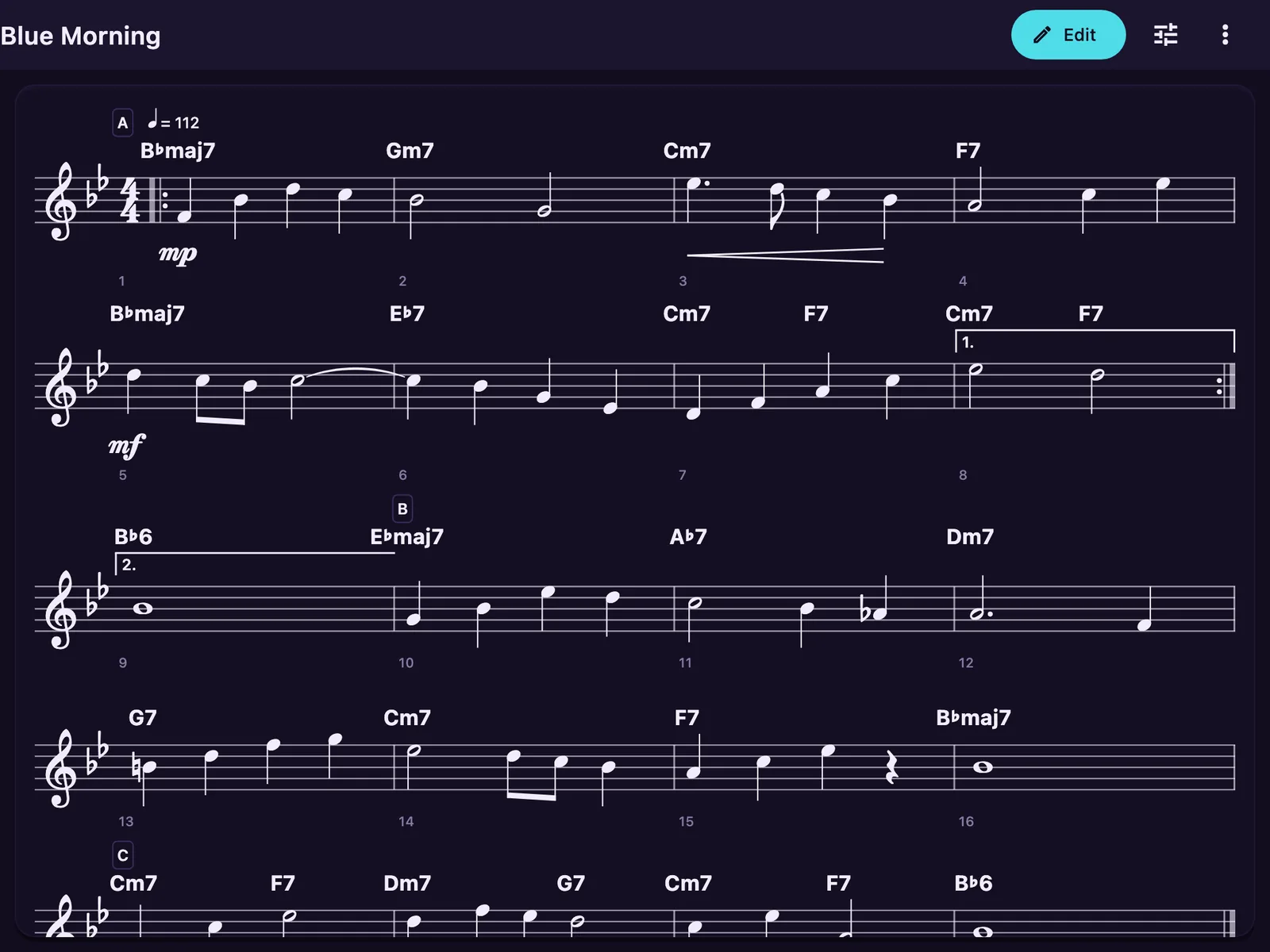
GuideTone engraves the chart straight from the audio — a Real-Book-style page in the hand-inked jazz face, rhythm slashes and all. And unlike the book on your stand, this one plays. Flip the same screen to the words and it reads them in time too.
01 · Follow the chart
Press play and the page reads with you: the current bar carries a highlight, a beat cursor walks the measure, and the page turns itself — the chart scrolls to keep the music in view.
It's the same playhead as the Player, so your loops, markers, and trainers all work from here. Practice from the chart; the audio follows.
02 · Player controls
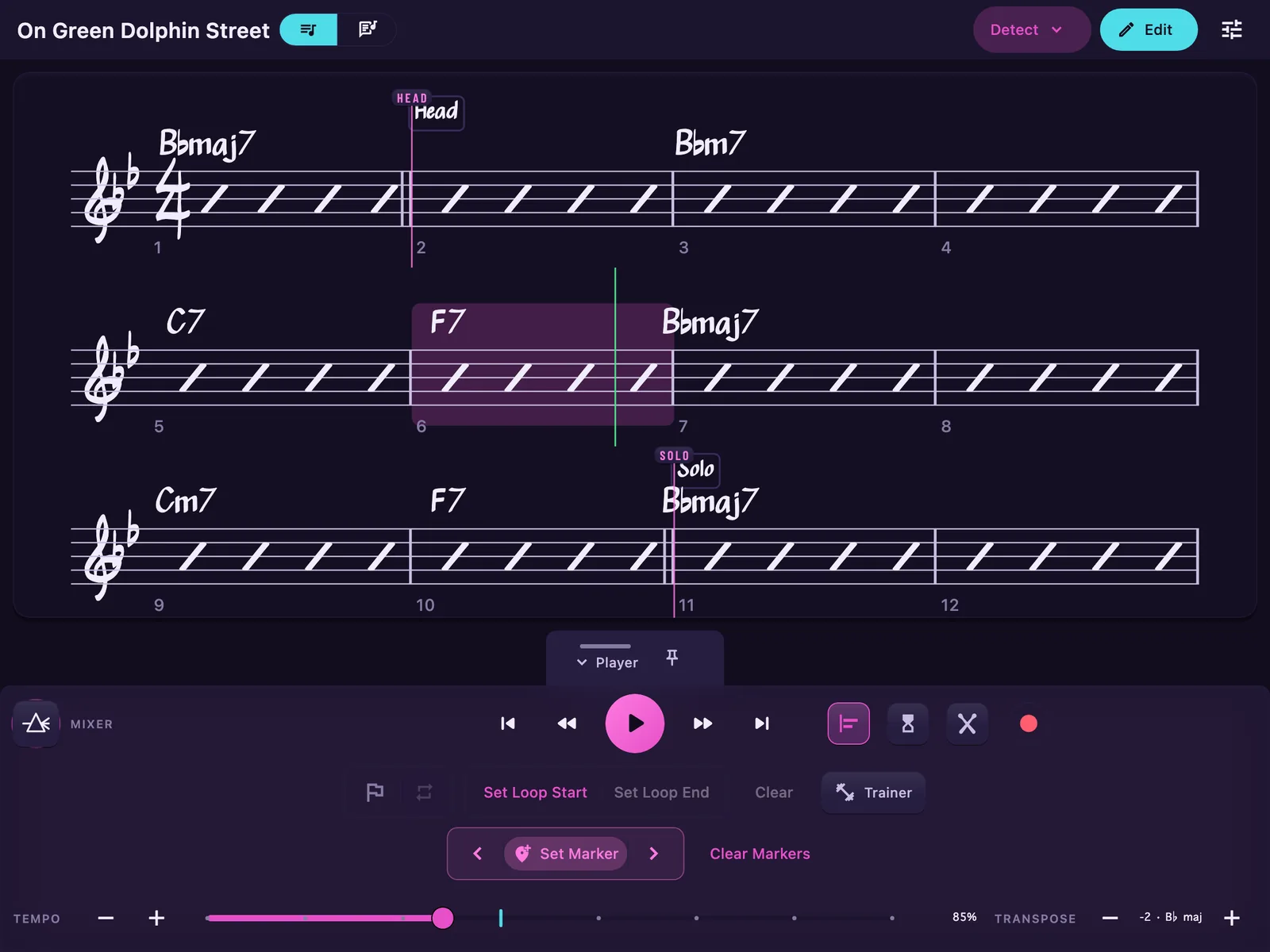
The playback row rides the bottom of the chart: pull the tempo to 85%, drop the key two half-steps, and the whole page re-engraves — key signature, every chord symbol, the trainer's key path.
Horn players: the chart finally reads in your key while the record plays in it too.
03 · The editor
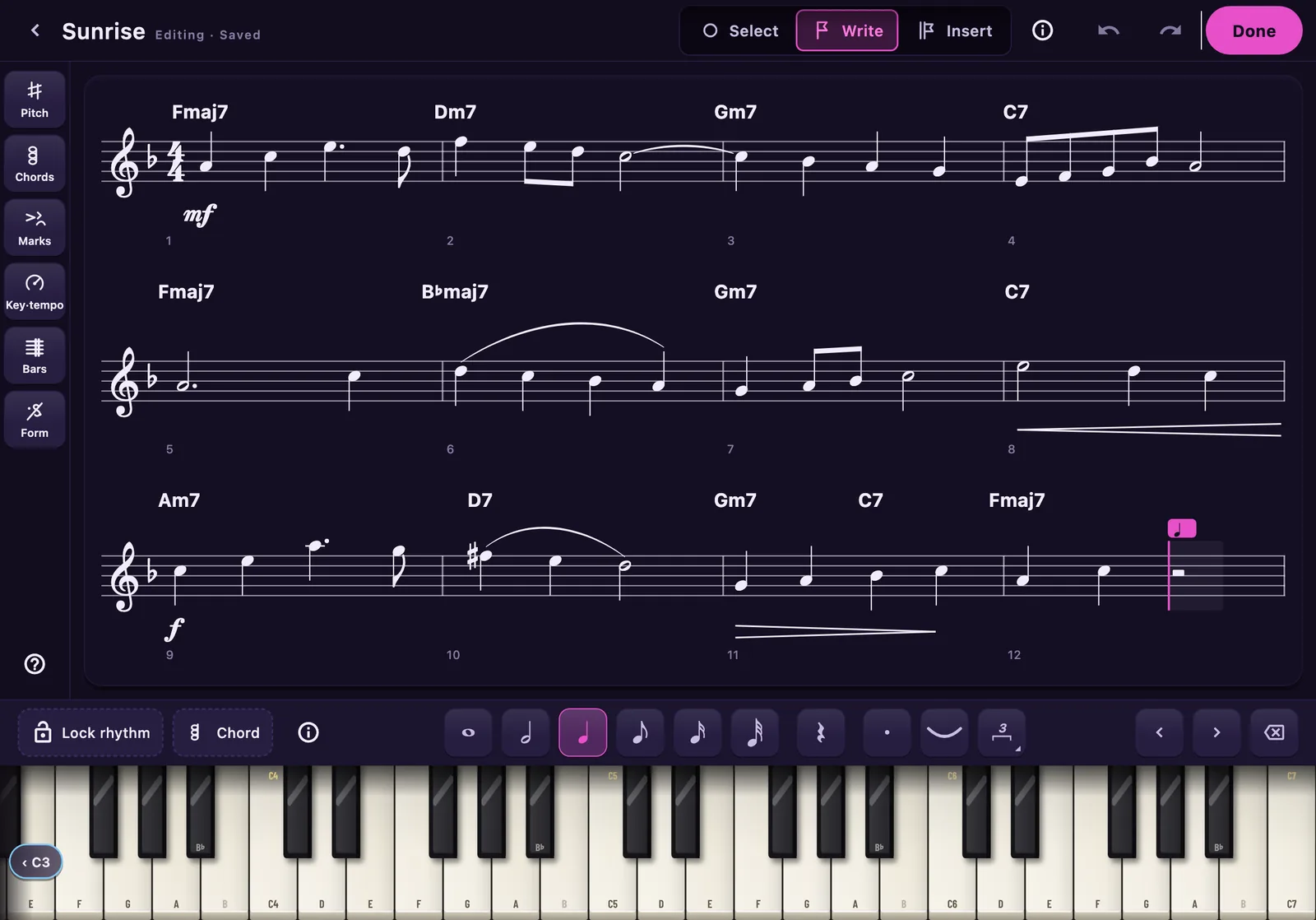
Hit Edit and the Transcription Editor opens over the recording: write a melody or a solo on the song's own bars, tap any chord to open it — root, quality, slash bass — or drag one to move it. Every edit saves as it lands, and Undo steps back through them.
Key & tempo sets the key or the time signature from any bar, and tempo lives right on the playback row — the whole chart, correctable at speed.
Section 03
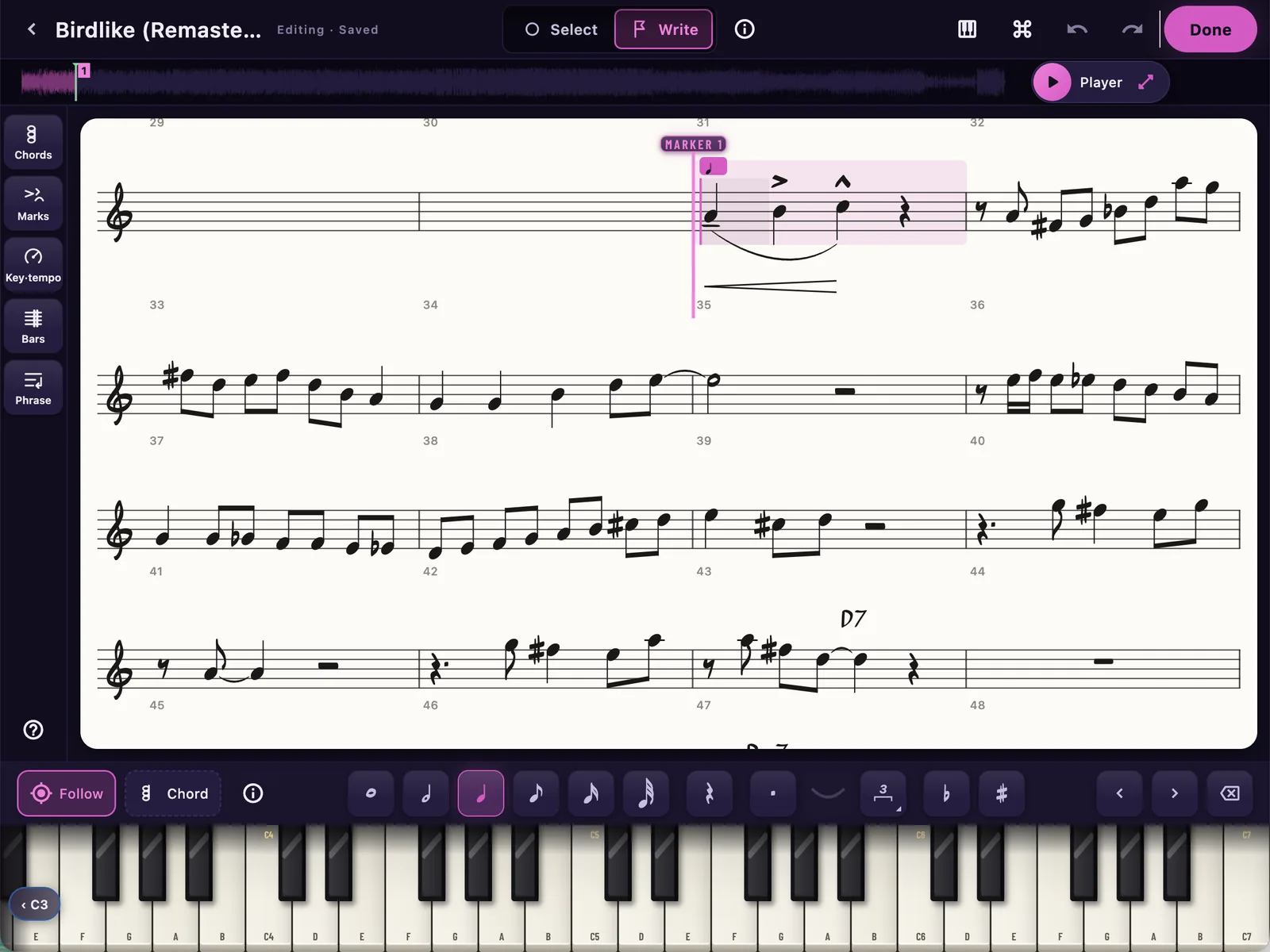
Write down what the record plays. Edit on the Chart opens the song's own bars as a page you can write on, over the recording — a head, a solo, a riff, note by note, right where you hear it.
01 · Write what you hear
Pick a note value and play it on the piano — or type it on a keyboard — and it lands at the caret, on the bar the record plays it in. Slow the song down, loop the phrase, and write until it matches. The first note in a bar of slashes turns the rest of the bar into rests, ready for the next.
Chords, marks and phrases share the page, and the key or meter can change from any bar. Every edit saves as it lands; when it's done, Export sends the chart with your notes to a PDF or to MuseScore.
Section 04
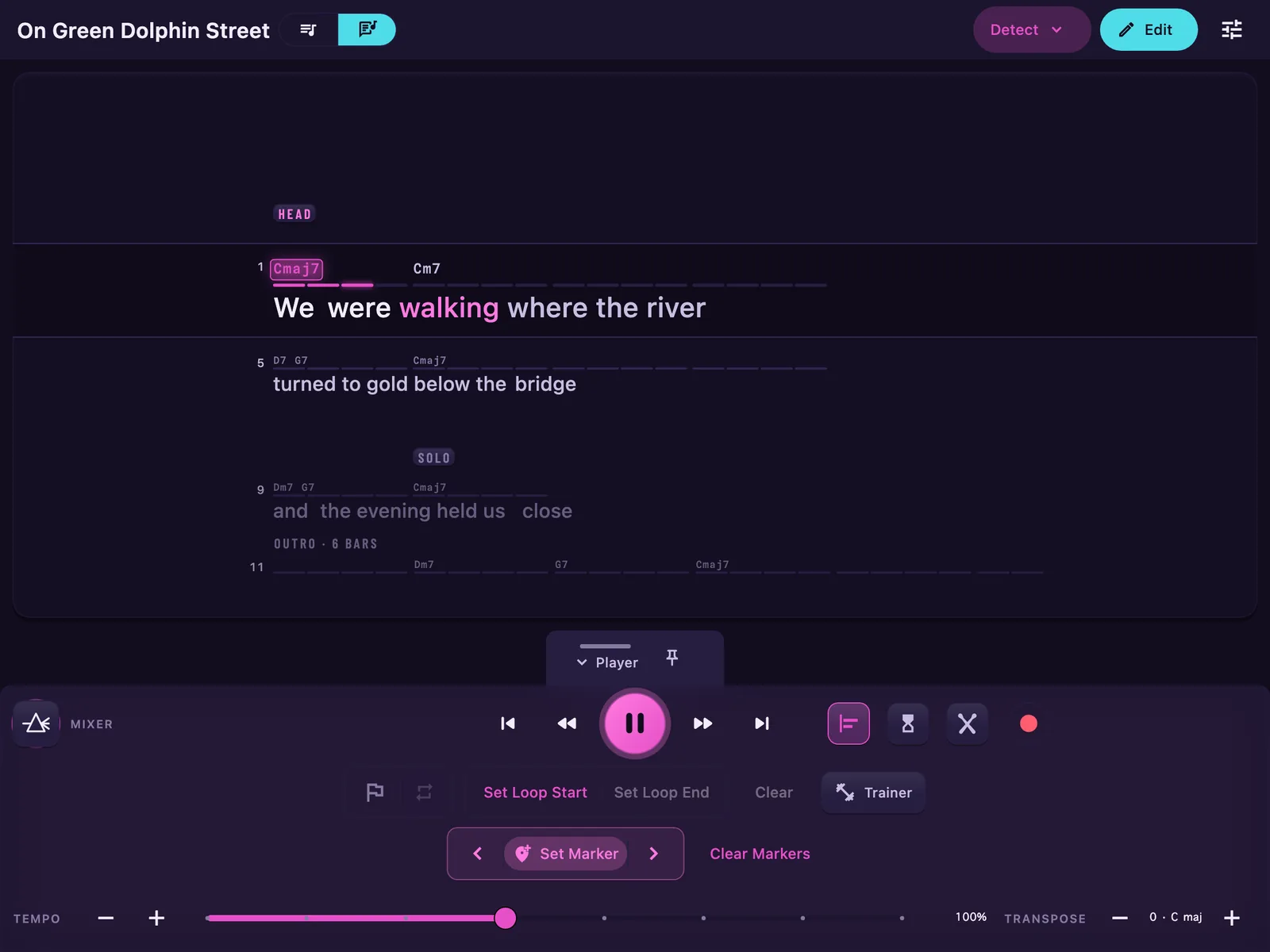
A page of words that keeps time with the record — the line you are on lit as it is sung, with the chords sitting right above it.
01 · Read the words
Press Detect and GuideTone listens to the song and writes down what is sung — on your own device, like everything else here — then lines every word up with the audio.
Read it as a chord sheet, or set it on a stand and read it from across the room — the page turns itself a phrase at a time, at the size you chose for where you're standing. Jump to any beat, hold a line to loop that phrase, and if a word came back wrong, fix it right in the sheet.
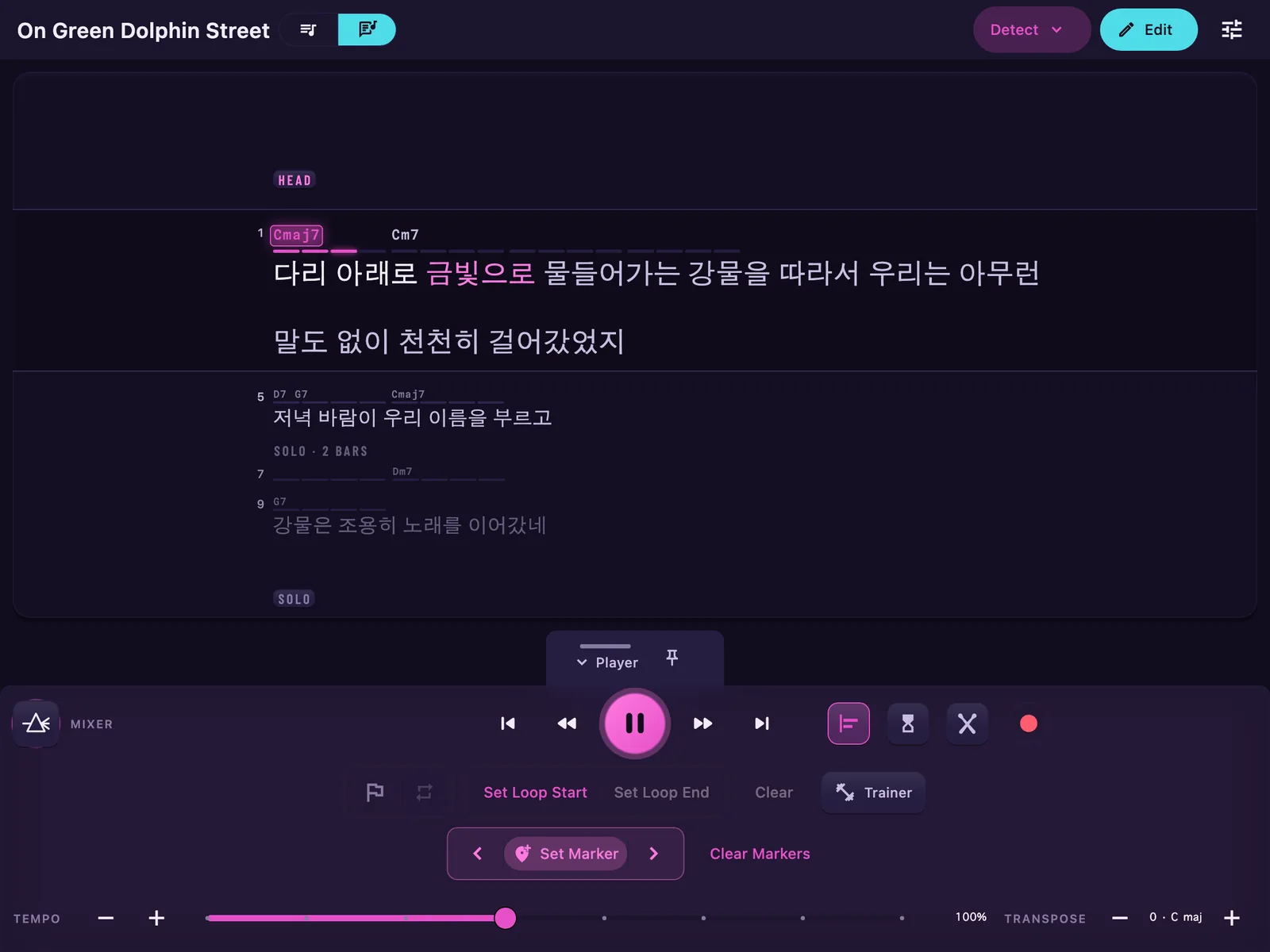
02 · In 99 languages
Detect recognizes 99 languages on its own — there is no language to pick — and writes down what it hears in the language the song is sung in, in that language's own script, not a translation. The sheet reads the same way whatever the script: the chords in time above the line, the phrase you're on lit word by word.
A script that wraps deep gets the room it needs. A long phrase folds onto a second row and the page parks the whole of it in view, so the line you're singing never hangs off the top. How clean the words come back still depends on the mix, same as in English.
Section 05
The Chart reads what a record plays; the Composer writes what you hear in your head. Start a blank score, or open one you already have, and work on it note by note — then print it, or send it on to MuseScore.
01 · Write it down
Add → New score… opens a blank page with its key, meter and tempo. Pick a value, tap a note on the piano — or type it on a keyboard — and it lands at the caret, engraved, and you hear it go in.
The rail holds the rest of the page: chord symbols, dynamics, slurs and hairpins, a new key or tempo from any bar, repeats with first and second endings, segno, coda, D.S. and D.C. Copy, cut and paste bars — or write a ii–V–I once and Bars writes it again in all twelve keys, around the circle.
02 · Open · Export
A MusicXML or .mxl file from a notation app opens from Add → Open a score file… and lands on your Scores shelf. A transposing part reads as its author wrote it, or at concert pitch. Anything the page can't draw yet is listed, and your original file is kept.
When it's done, export it: a PDF to print, or MusicXML for MuseScore — written for your instrument, or at concert pitch.
Section 06
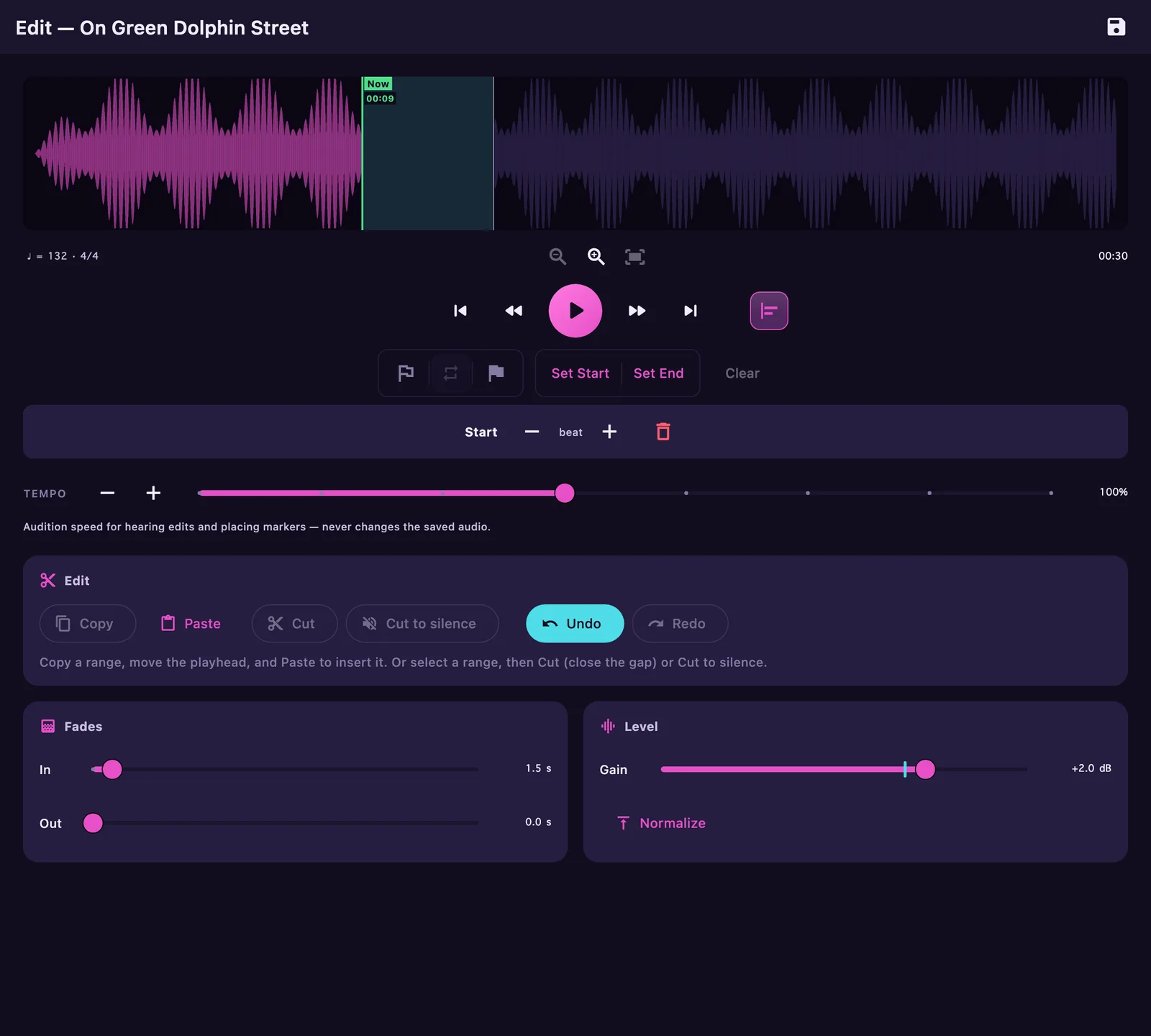
Cut the count-off, silence the false start, paste the chorus twice — non-destructive until the moment you save, and every change audible instantly.
01 · Cut · Copy · Paste
Select to the beat (snap knows the bar lines), then cut — close the gap or leave silence — copy, paste at the playhead, undo, redo. Every edit re-renders from the original audio, so there's no generational loss, ever.
Fades, gain, and one-tap Normalize ride the output stage; audition slower without touching the saved audio. Then Save — or Save as Copy and keep both takes.
Section 07
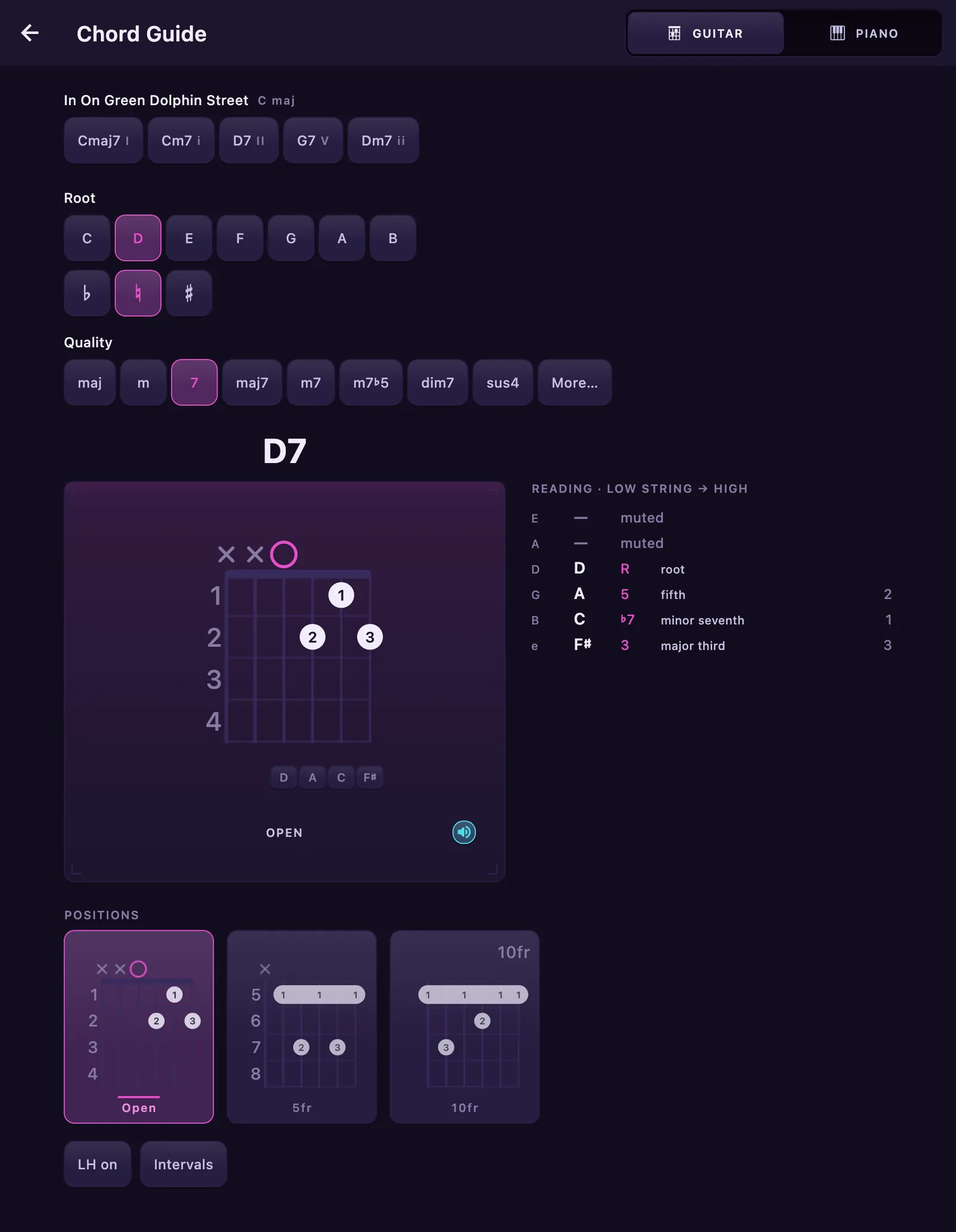
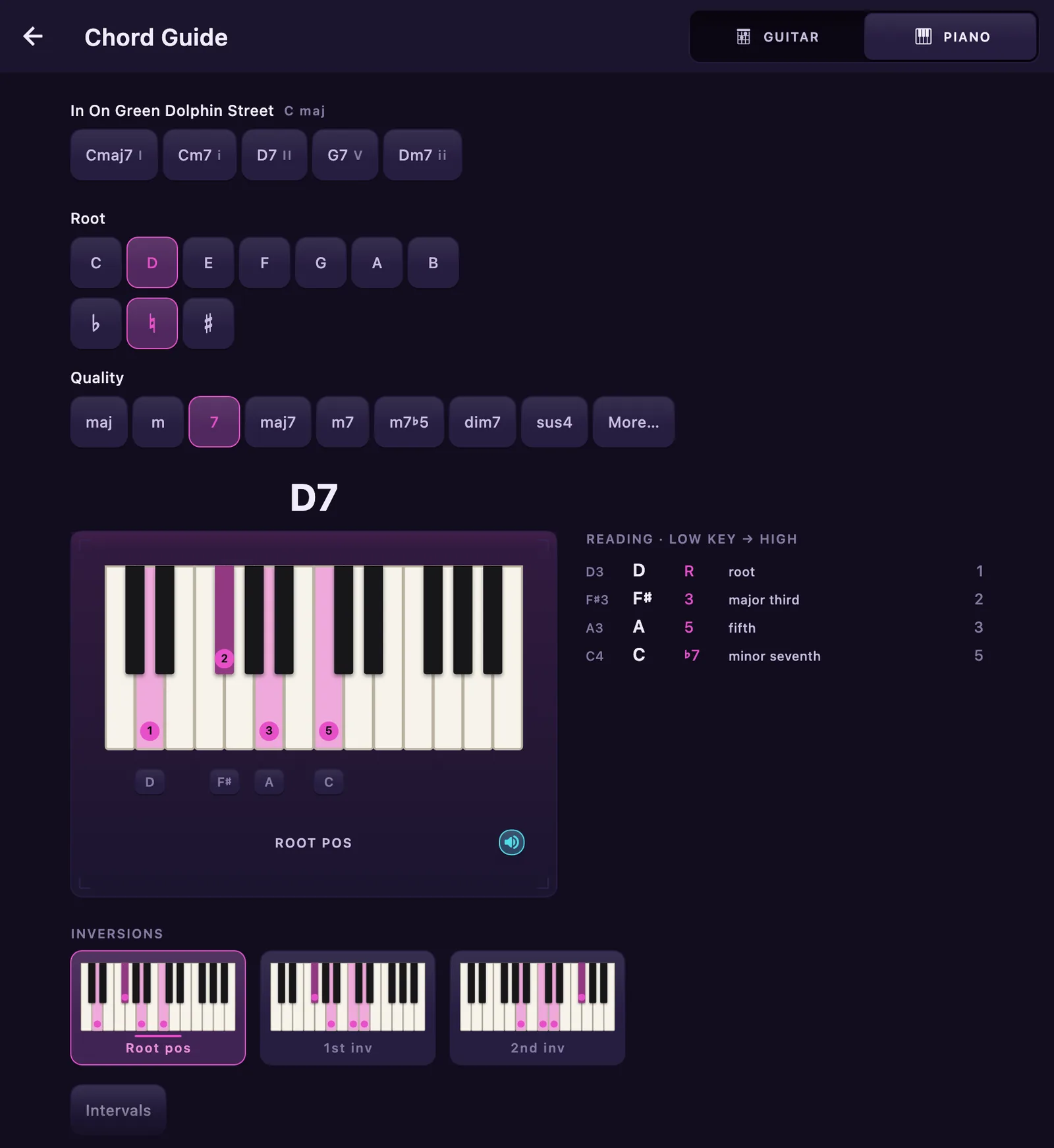
Every way to play every chord — on a neck and on a keyboard — fronted by the ones in the song you just loaded.
01 · Every way to play it
Pick a root and a quality and GuideTone draws the shape — on a guitar neck and on a piano keyboard — with every dot named for the job it does in the chord: root, third, fifth, the tension. Under the diagram, a row of chips prints the note each string or key actually sounds, so a grip spells itself out left to right.
Beside it sits the reading: string by string, key by key, in real text that grows with your device's type size — position, note, interval, and the interval's long name. Under that, the positions run as a contact sheet. Tap one and it takes the stage.
Load a song with chords detected and the guide fronts that song's chords, capo and all — one button on the Player's chord lane opens it on the chord you're hearing. Left-handed? One switch flips every diagram in the app.
02 · The diagrams sing
Tap a chord and hear it — strummed on a real nylon-string classical guitar, or played on a grand piano. Drag across the strings, or across the keys, to pluck the notes one at a time. Tap again to damp.
Strings and keys light as they sound, so a light always means a sound happened. Back on the Player, switch on the pick and every chord strums as the song reaches it, in time.
Recorded instruments, not a synthesiser — and they can never reach a take: a pluck is mixed in after the recorder's tap, by construction.
Live — you play this one
Press the box to strum it, or drag across the chips to pluck one note at a time — each chip prints the note that string actually sounds, which is rarely the string's own name.
Synthesised here in the page. In the app these are recorded instruments — same grip, same notes, fuller tone.
Section 08
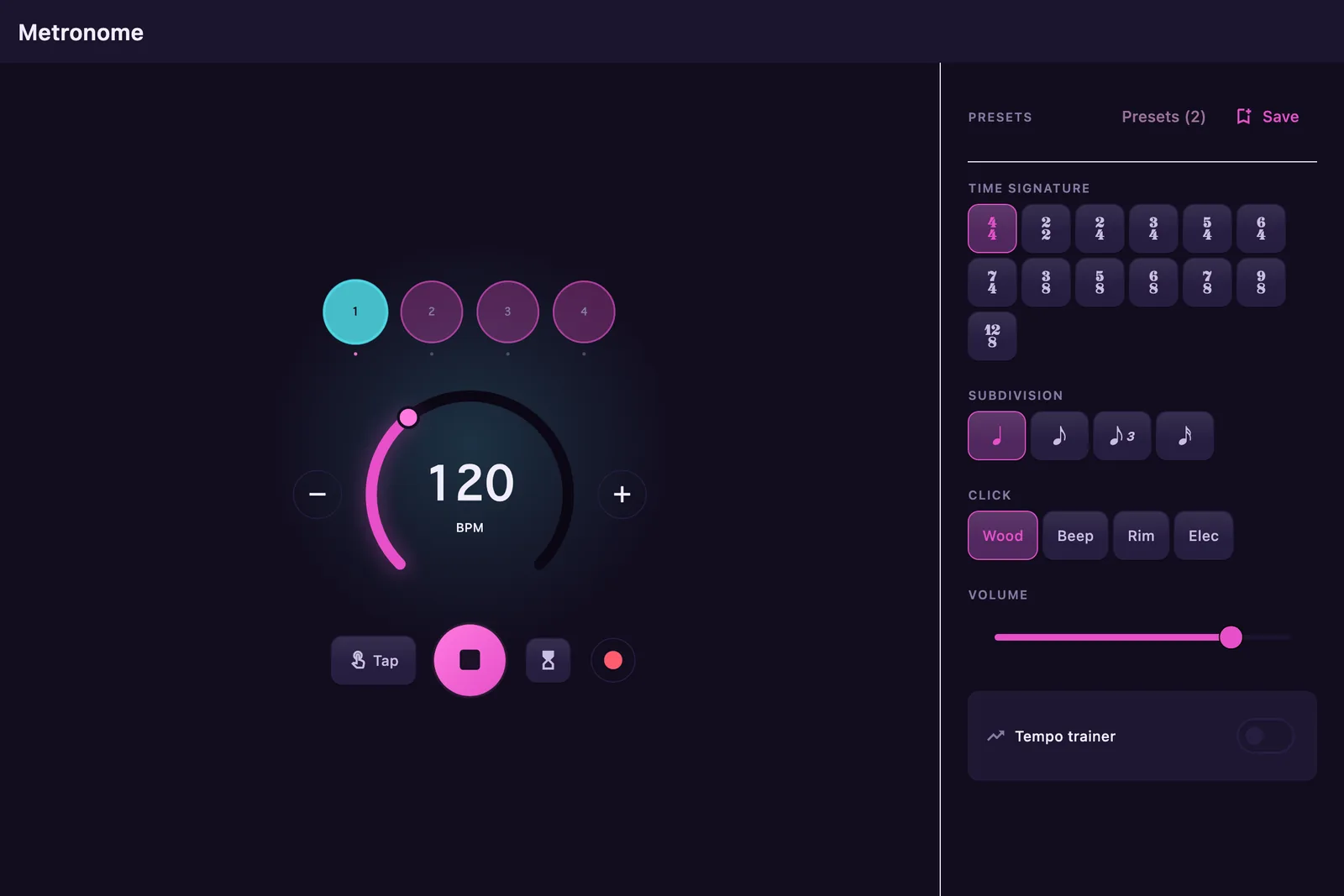
A sample-locked click with a face worth watching — and a trainer that raises the tempo while you're not looking.
01 · Pulse Deck
The beat row blooms on every click — downbeat orange, the rest quiet — so the accent pattern is visible at a glance. Four voices, subdivisions down to triplets and eighths, tap tempo, and presets for the setups you keep coming back to.
Sample-locked in the native engine, so the click never drifts — and when you record from here, the count-in reads the song's own detected tempo.
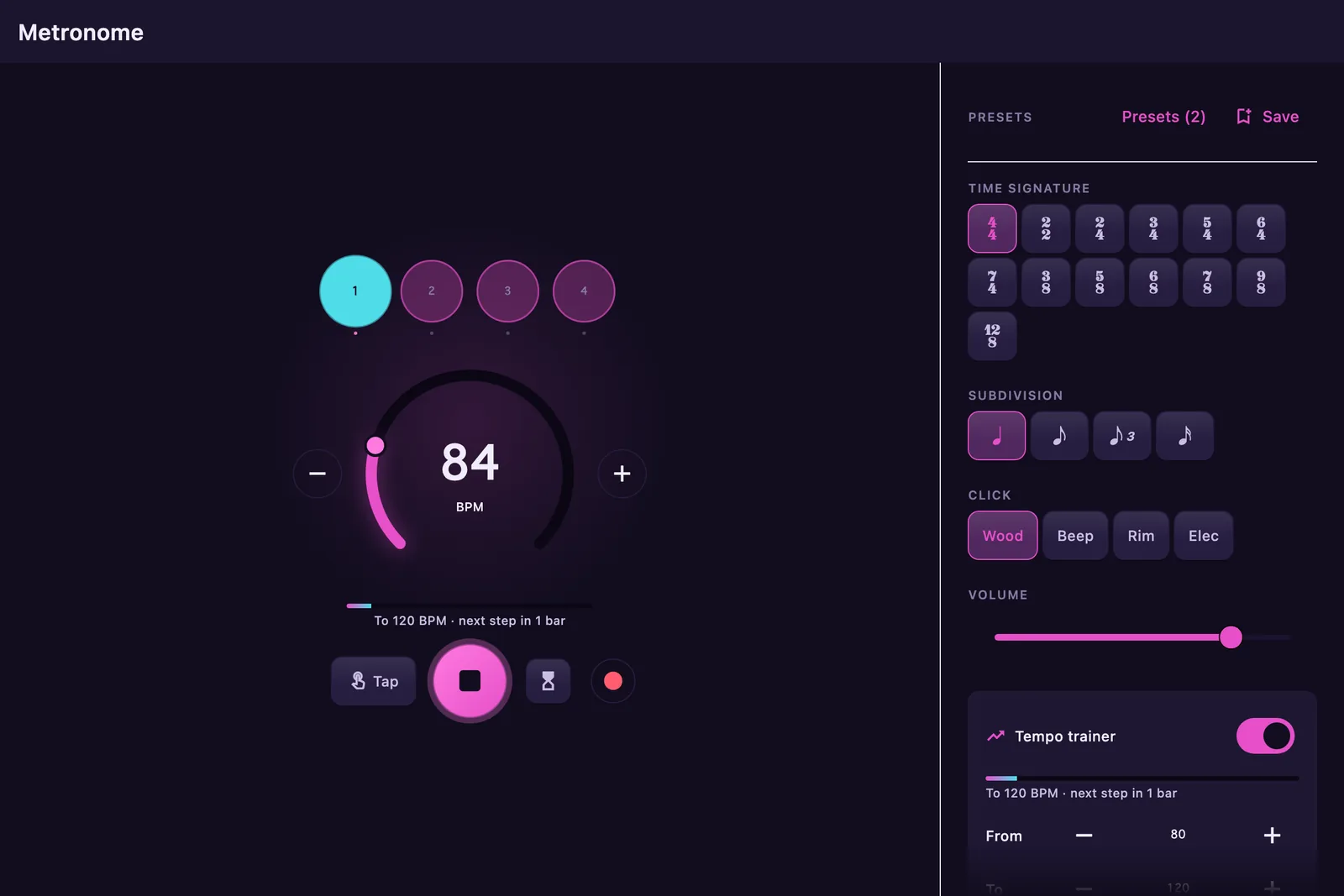
02 · Tempo Trainer
Set From, To, and the step, and the trainer raises the tempo while you play — a nudge each bar, 80 to 120, until the readout says you've arrived. No stopping, no touching the dial; the click leads and you follow.
It's the metronome's cousin of the Player's Speed trainer — the same idea, aimed at scales, rudiments, and everything you practice without a record.
Section 09
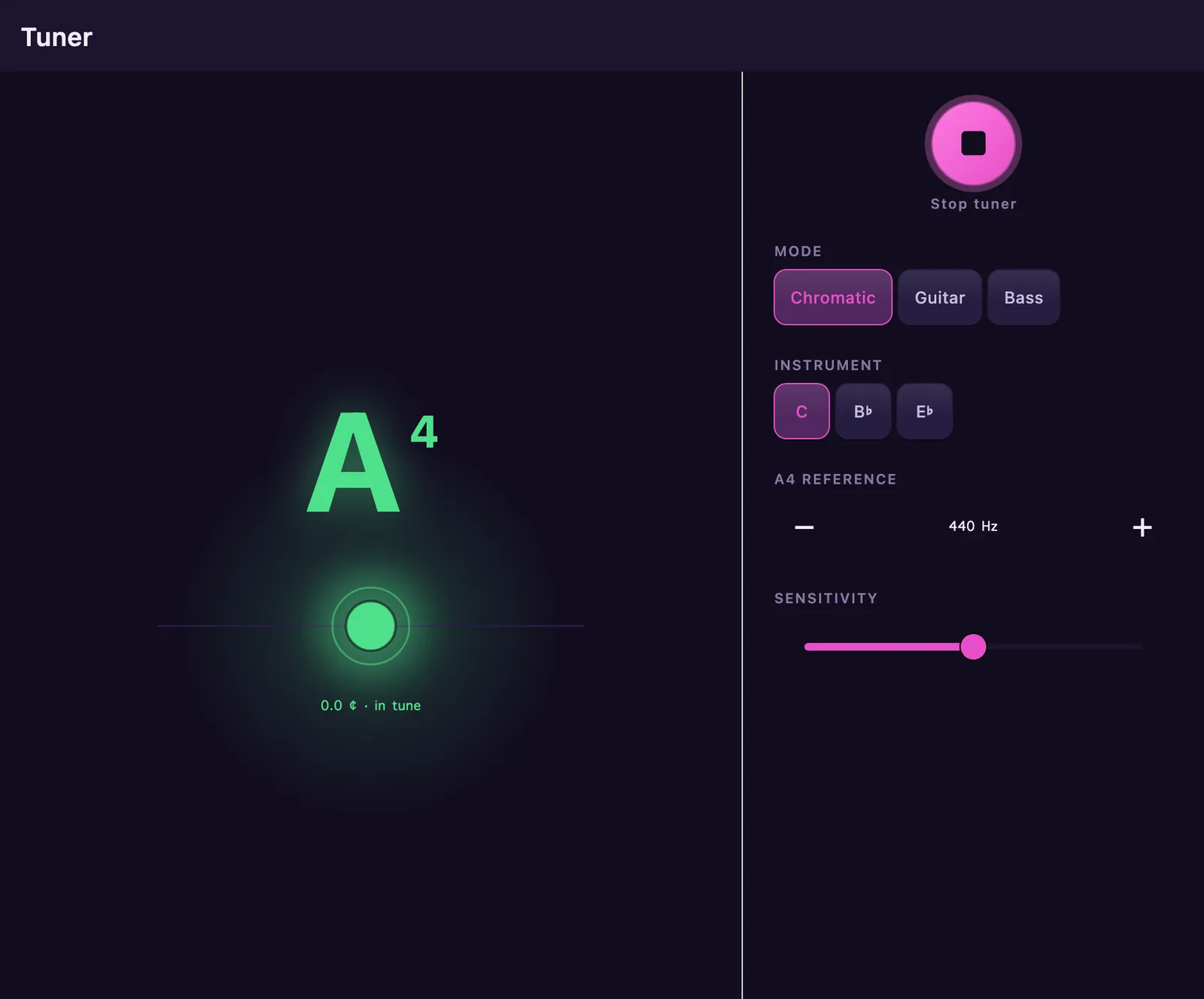
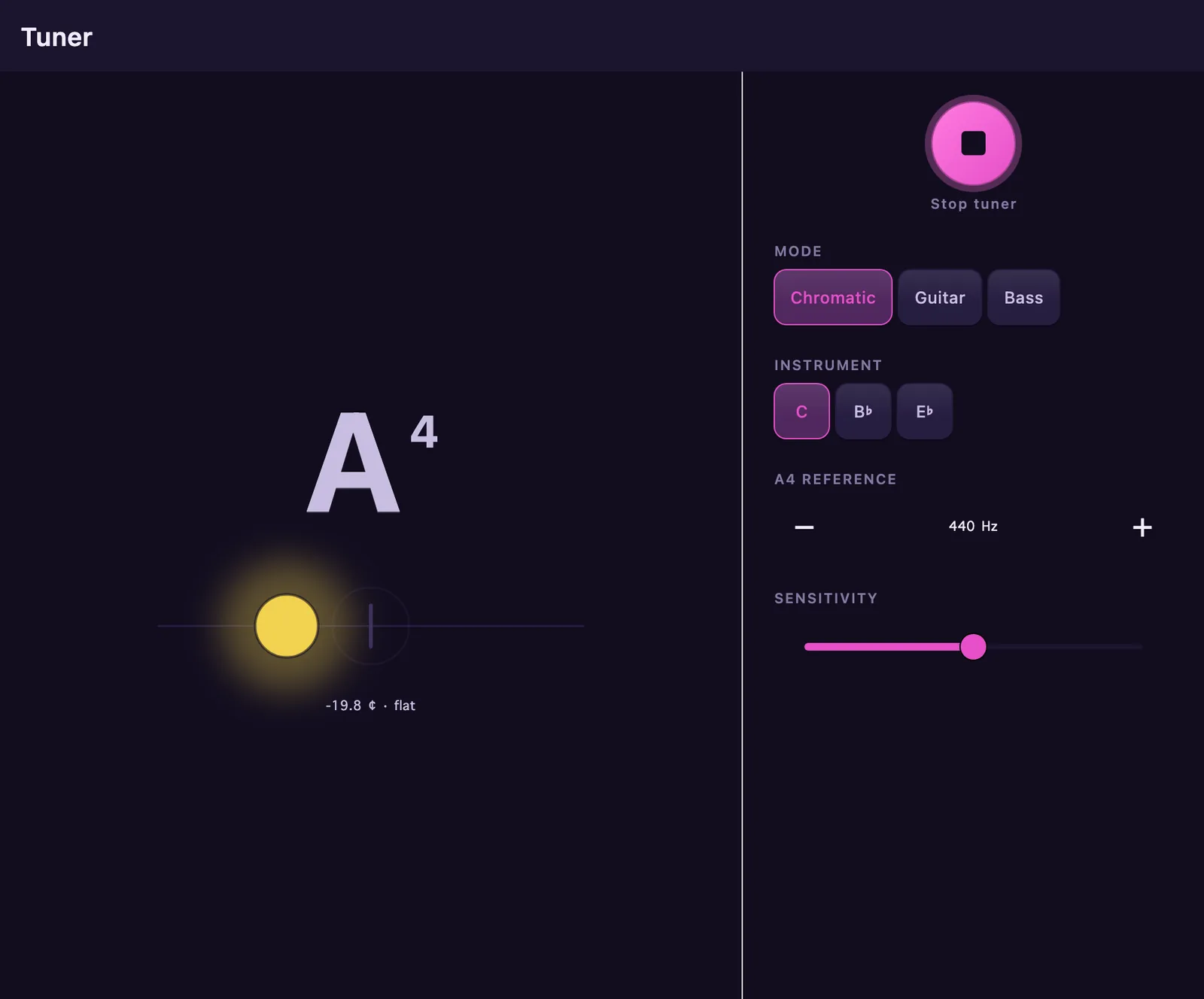
A chromatic lantern: the note at the heart, your pitch orbiting it, and a green bloom when you land.
01 · Pitch Lantern
Your pitch orbits the target — amber when you're shy, red when you're wide, and a green bloom the moment you lock. Cents on the dial, no squinting at needles.
Saxophonists and clarinetists: flip the keycap and the tuner reads in B♭ or E♭ — concert pitch stays under the hood. A4 is yours to calibrate, and so is how hard the tuner listens.
Guitarists and bassists get a headstock instead: switch to Guitar or Bass and the six — or four — tuners light up one at a time as you work down the strings.
Try it on the rain Two gutters are dripping behind this card — almost, but not quite, together. Rest your cursor over the water and hold still: the drips settle into one pulse. That's what in-tune sounds like.
Section 10
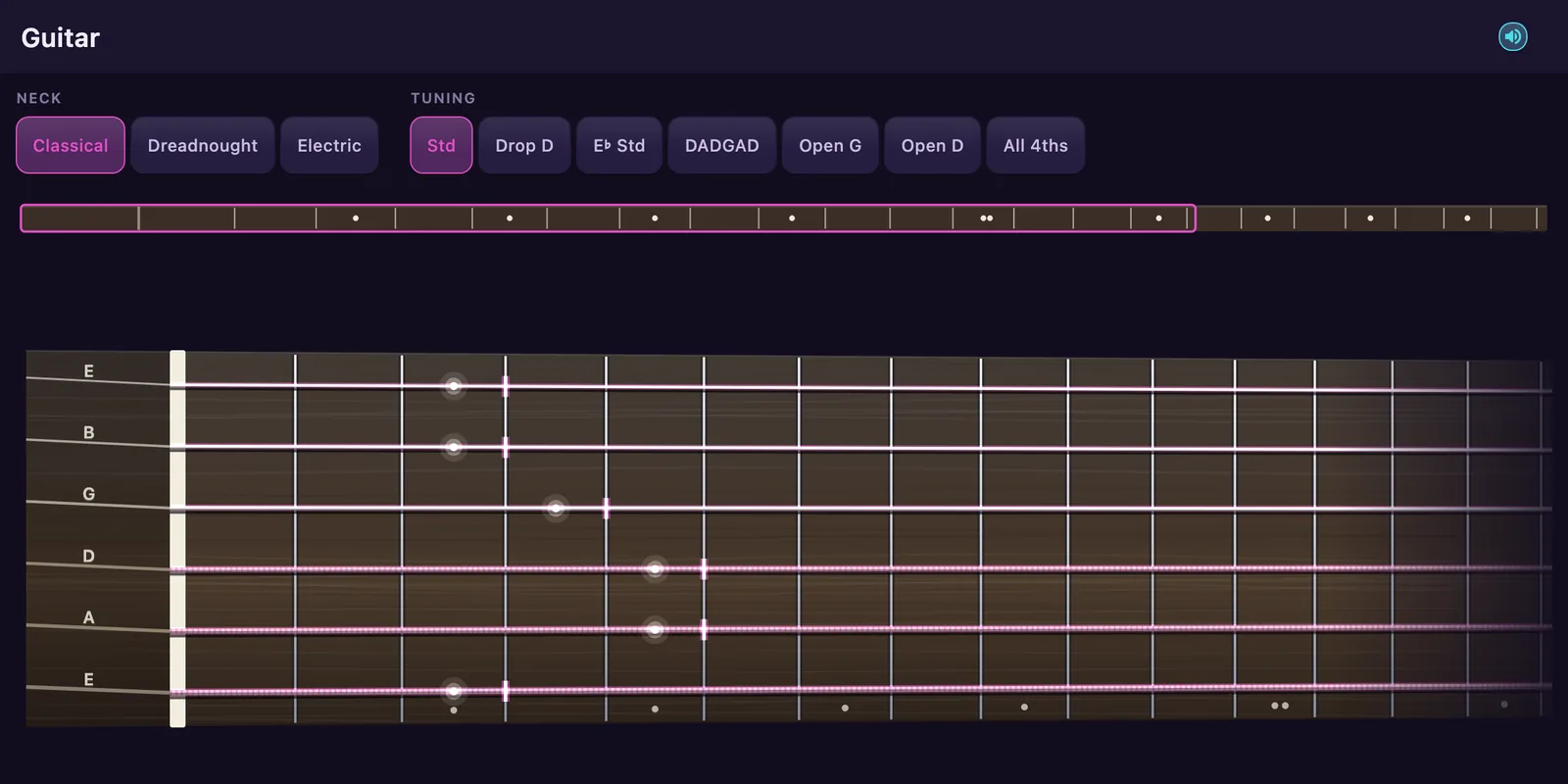
A full-length neck on the rack — and this one you play. Strum it, pluck it, run a line up one string.
01 · First Position
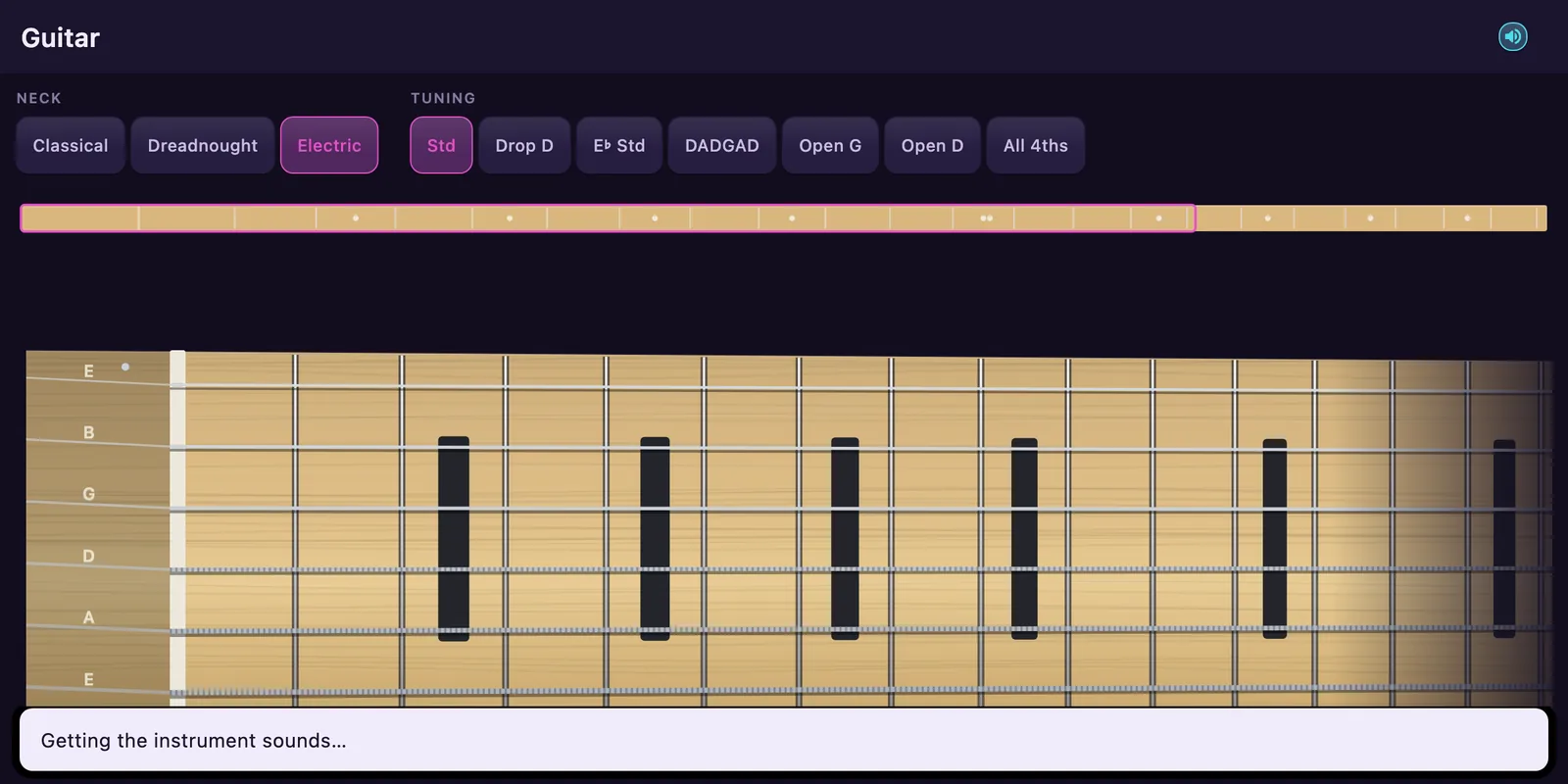
Twenty-two frets, six strings, and every cell under your finger. Strum across the strings, pluck one, or slide along a line — each note sounds the instant you touch it, and the string you struck is the one that lights and rings. A light here only ever means a sound happened.
Pick the neck you want under your hands — classical, dreadnought or electric, each with its own board, inlays and grain, all voiced by the same recorded nylon-string guitar. Then pick the tuning: standard, Drop D, E♭, DADGAD, Open G, Open D. The guitar remembers both, and left-handers flip the whole neck with the same switch that flips every chord diagram in the app.
Moving up the neck happens on the rail above the board, not on the board itself — so the strings never slide out from under the hand that's playing them. It sits on the Tools rack beside the metronome, the tuner and the Chord Guide, ready when you are.
Feedback
GuideTone is built by one working musician, and every note you send is read by the person who writes the code. Bug, wish, or the lick you finally nailed — it all shapes what gets built next.
Write to meguidetonestudio@gmail.com